Items are versatile placeholders for information that you want to show your guests. They can be assigned to one or multiple properties and can be organized by adding them to a section. Select items can also be added on the main-menu's featured section.
How to Add Items:
1. Click on "Items" in the sidebar.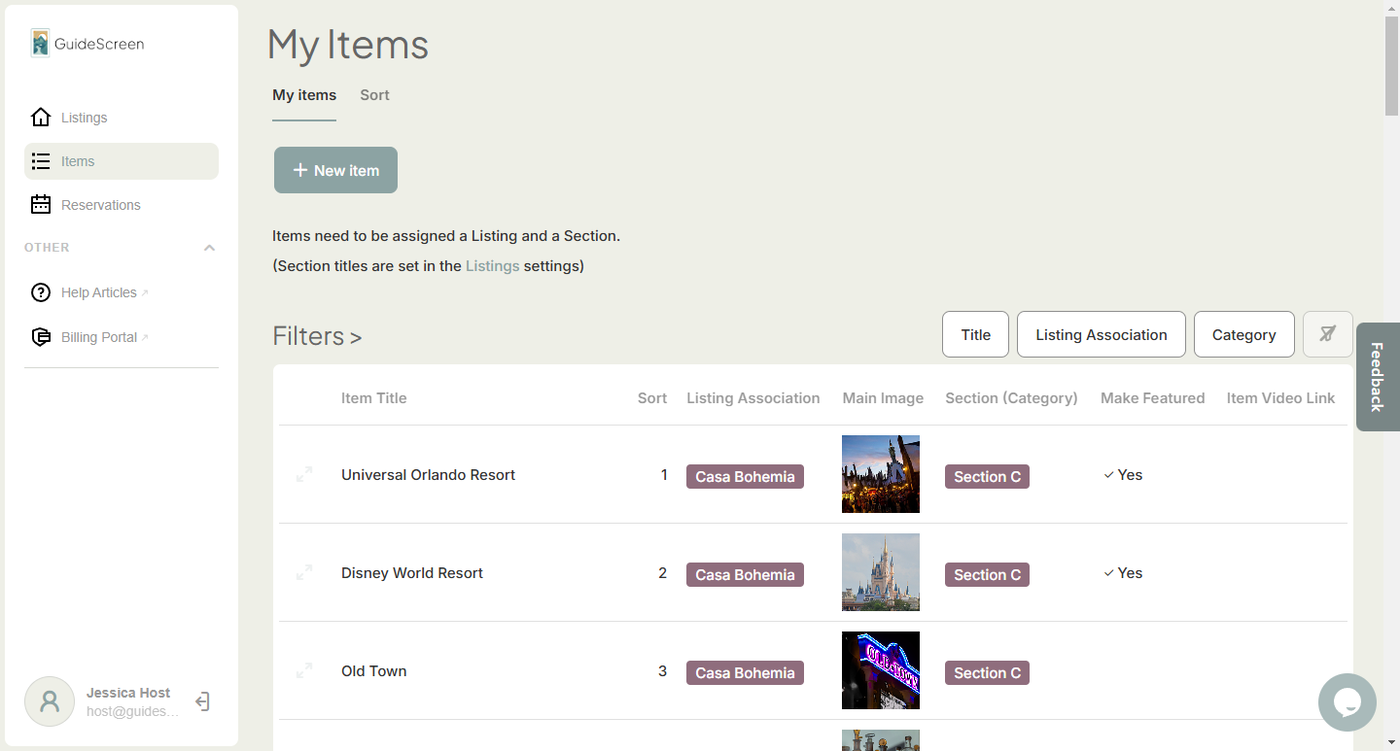
2. Click the "+New item" button at the top. A section with fields should appear after clicking the button.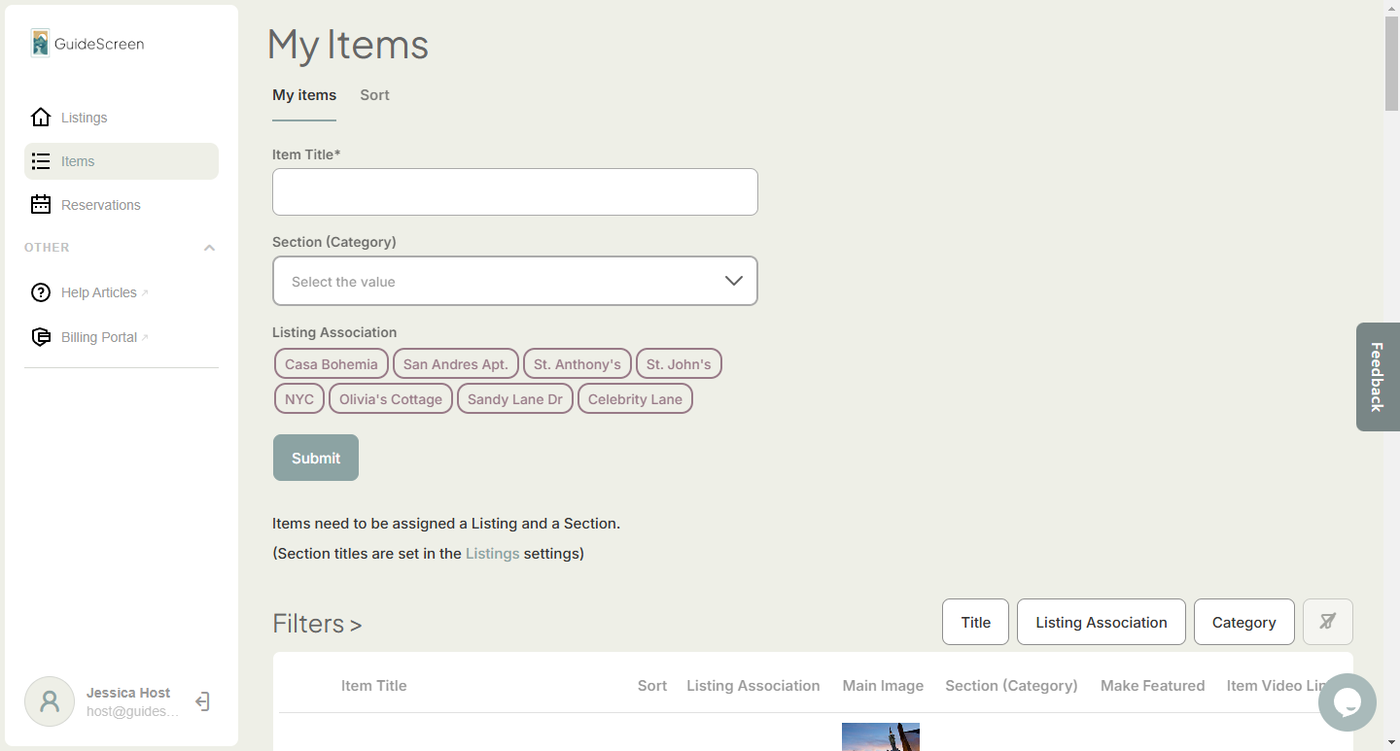
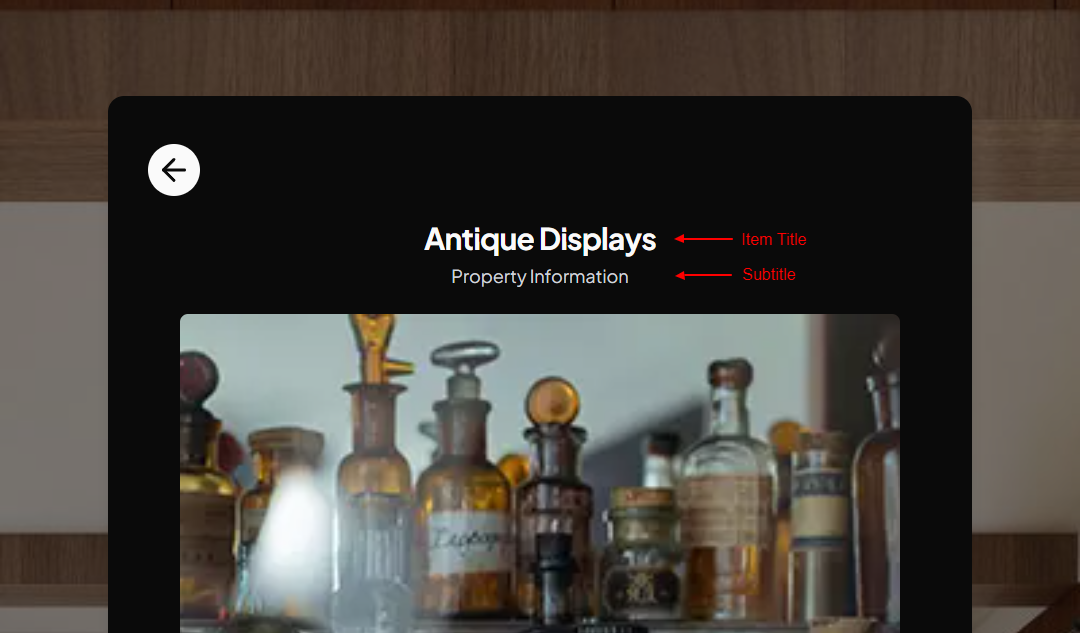
3. Add a Title for the item. The Title appears on the following screens: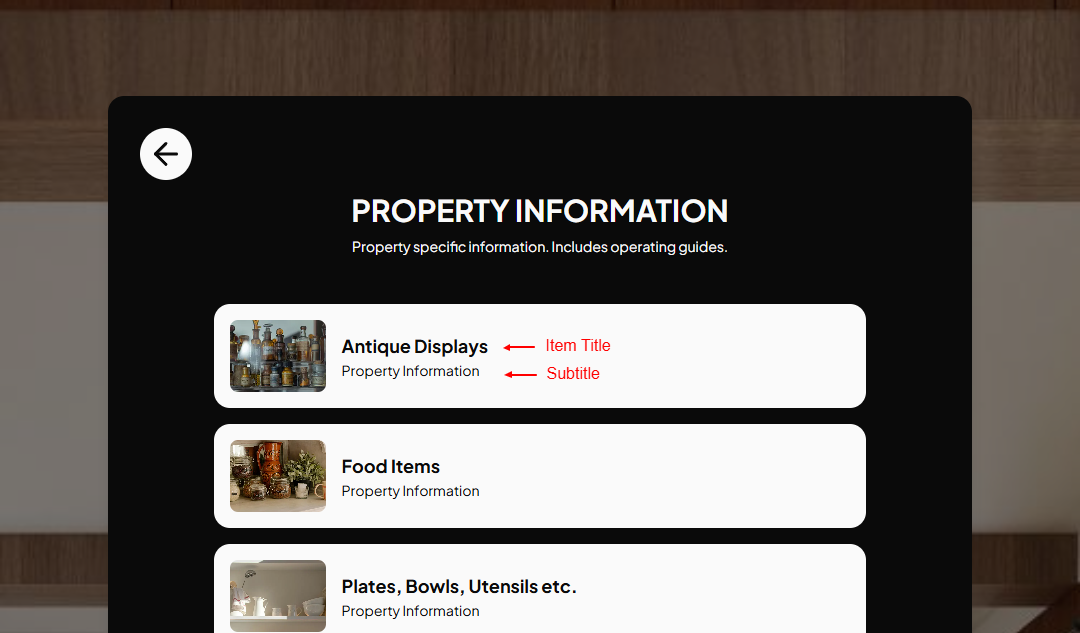
4. Select a Category. Section A will be the top most element, Section B is the one in the middle, and Section C is the last element on the device's main menu. Refer to the Listing Settings: Sections Tab article to learn how to configure the sections.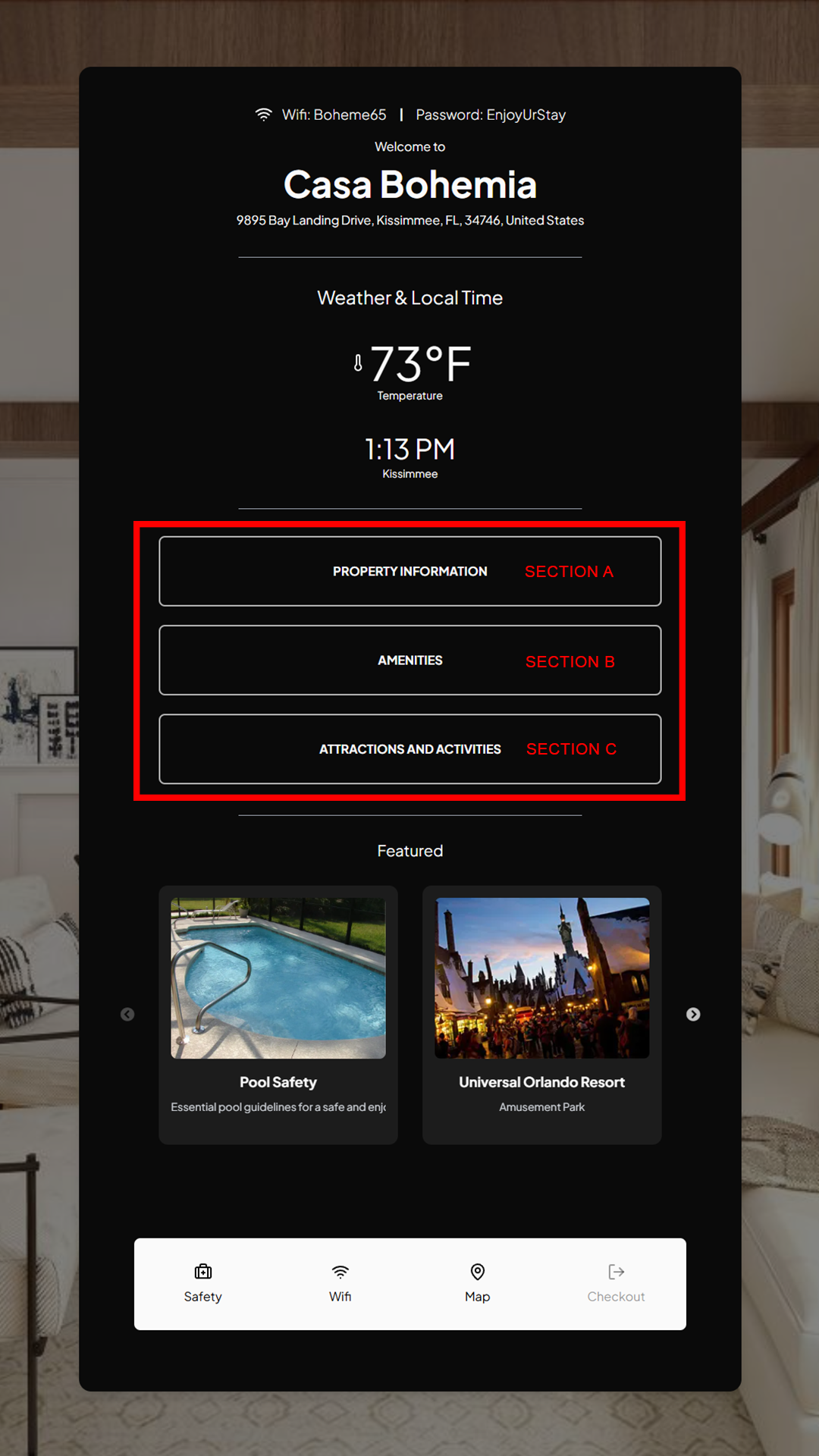
5. Select which listing/s you want to associate the item. Items can be associated to multiple listings. Simply click on one or more of the listings shown in the drop-down.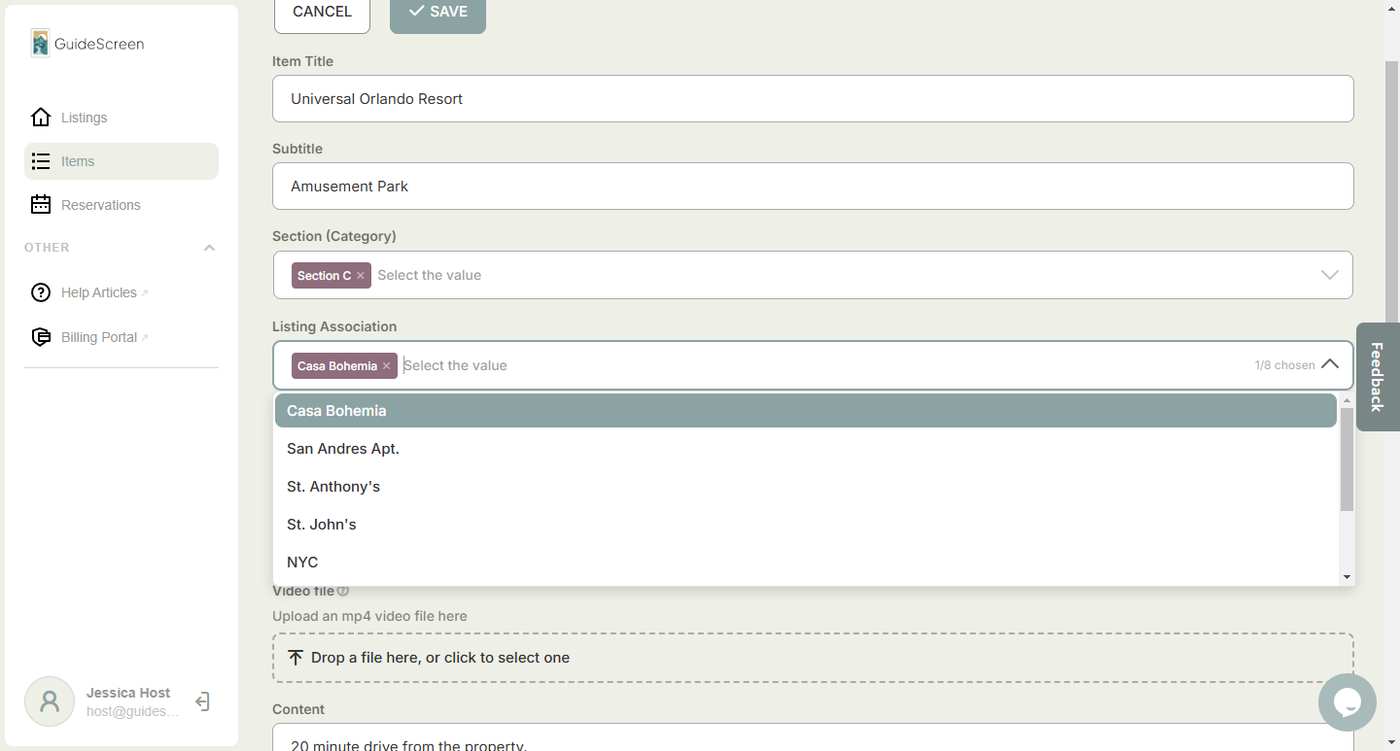
6. Click "Submit". After submission, you should see the item under "My Items".
Next Article: Editing Items and Item Settings