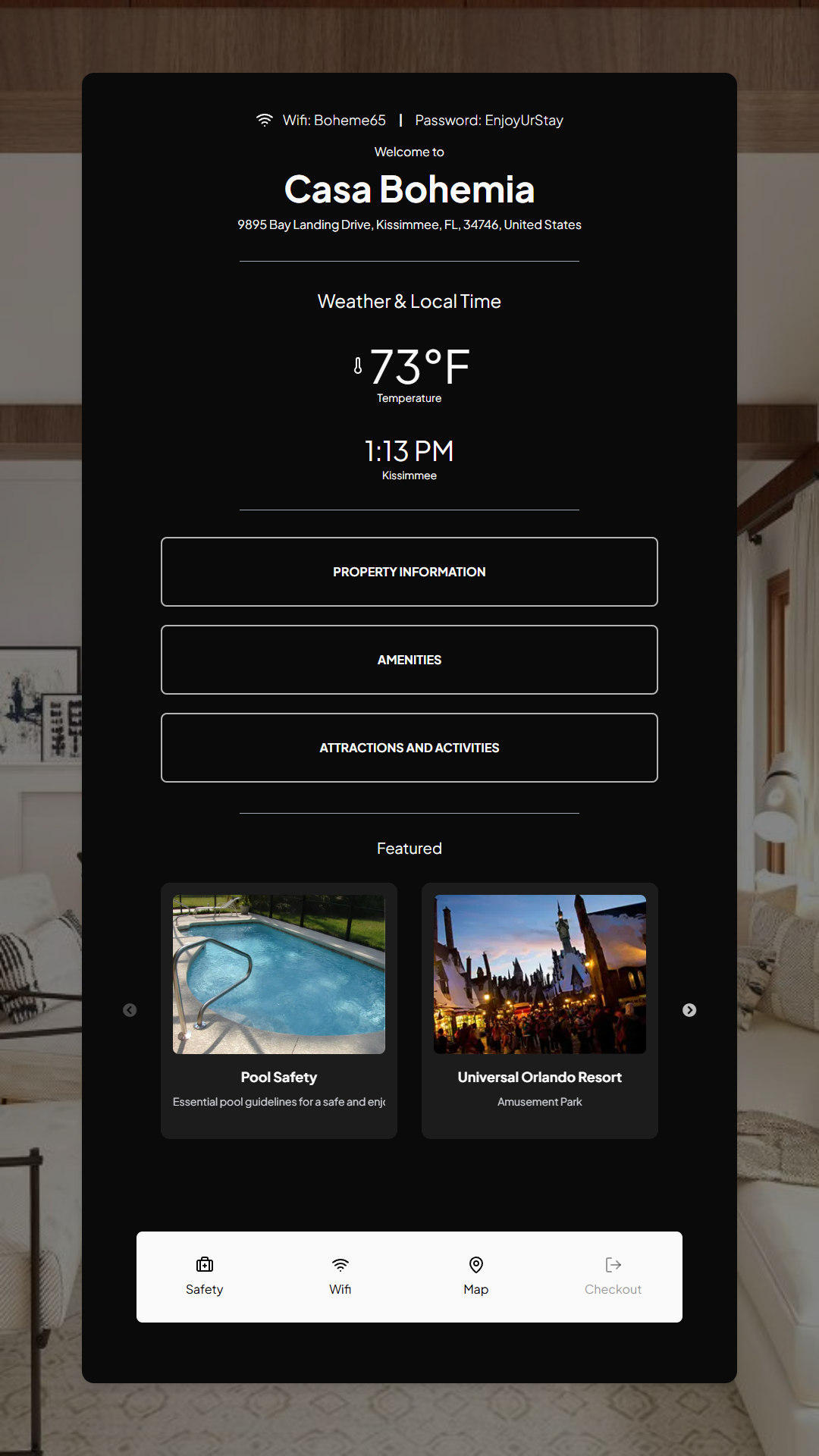
Follow these steps to edit an item:
1. Click on "Items" in the sidebar.
2. Find the item which you would like to edit, then click on the expand icon on the left side, beside the Item Title. The item screen would pop up after clicking.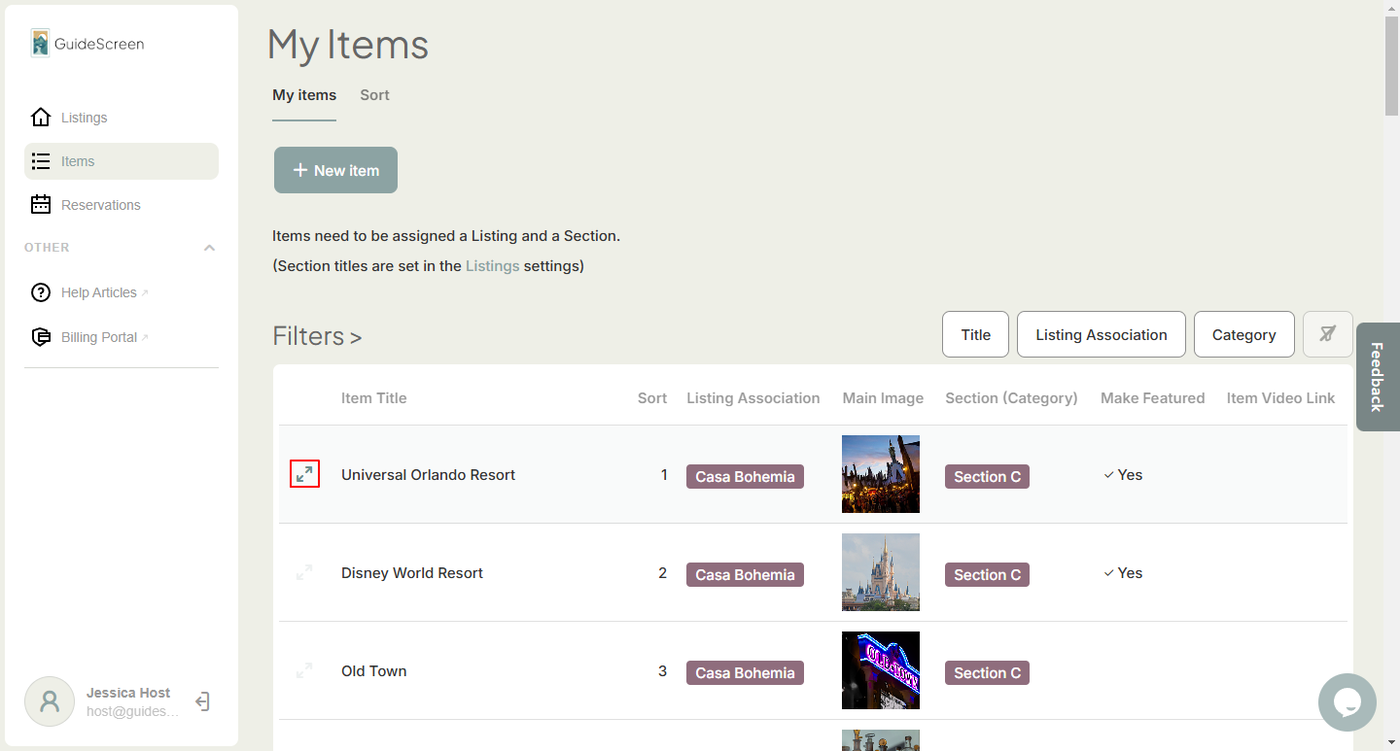
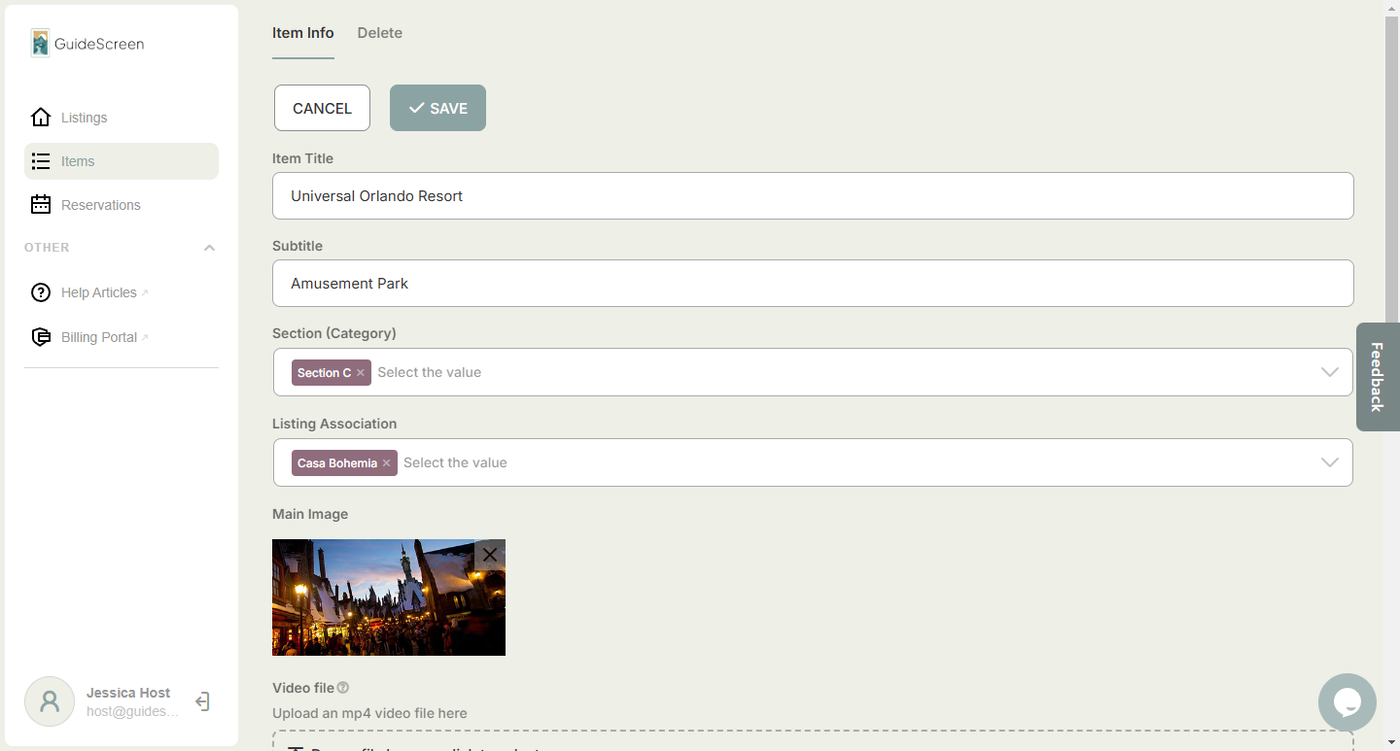
Item Settings:
1. Sort - Defines the sorting order of the item within a section. Selecting "1" would put it at the top.
2. Category - Selects the section/s where the item would appear. You can add an item to multiple sections.
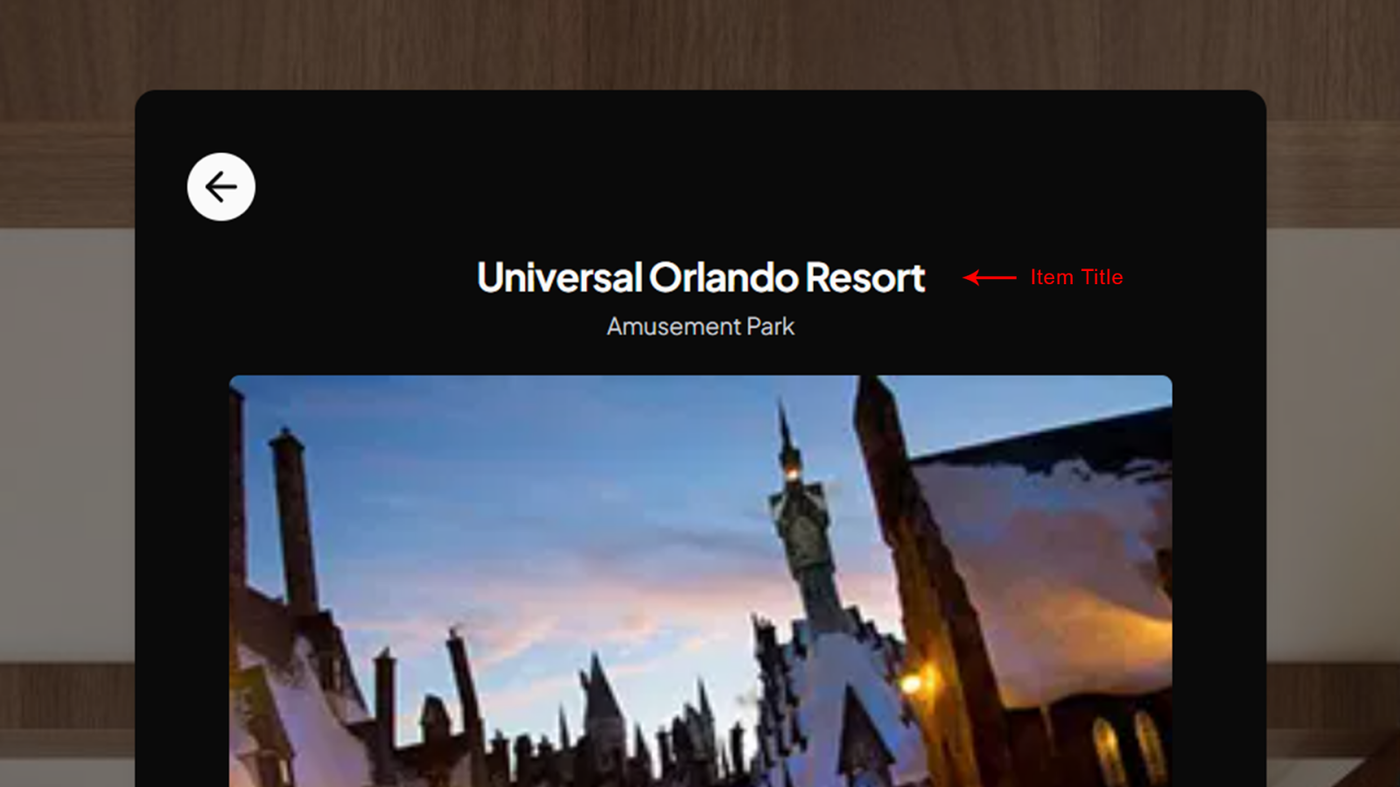
3. Item Title - The name of the item. The Item Title is show in various screens on the device.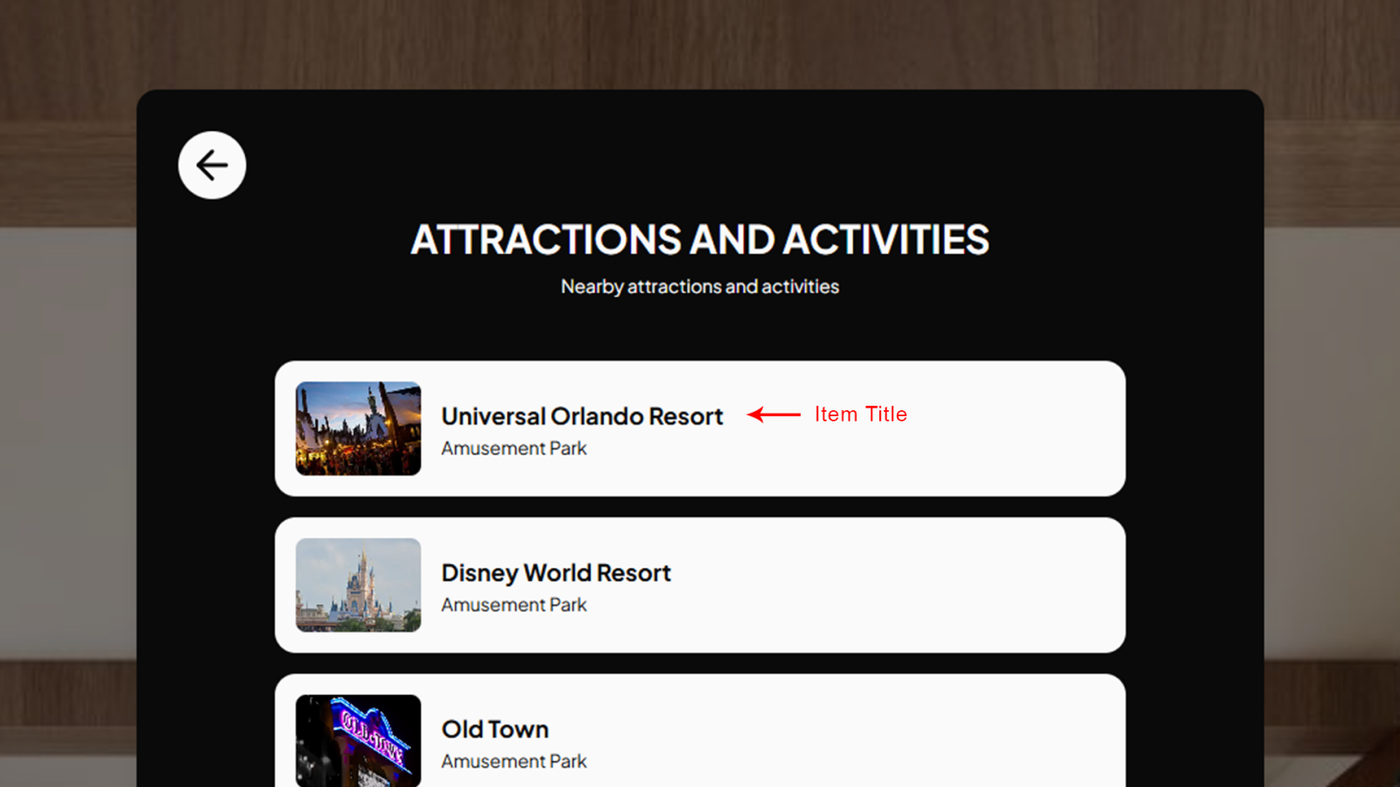
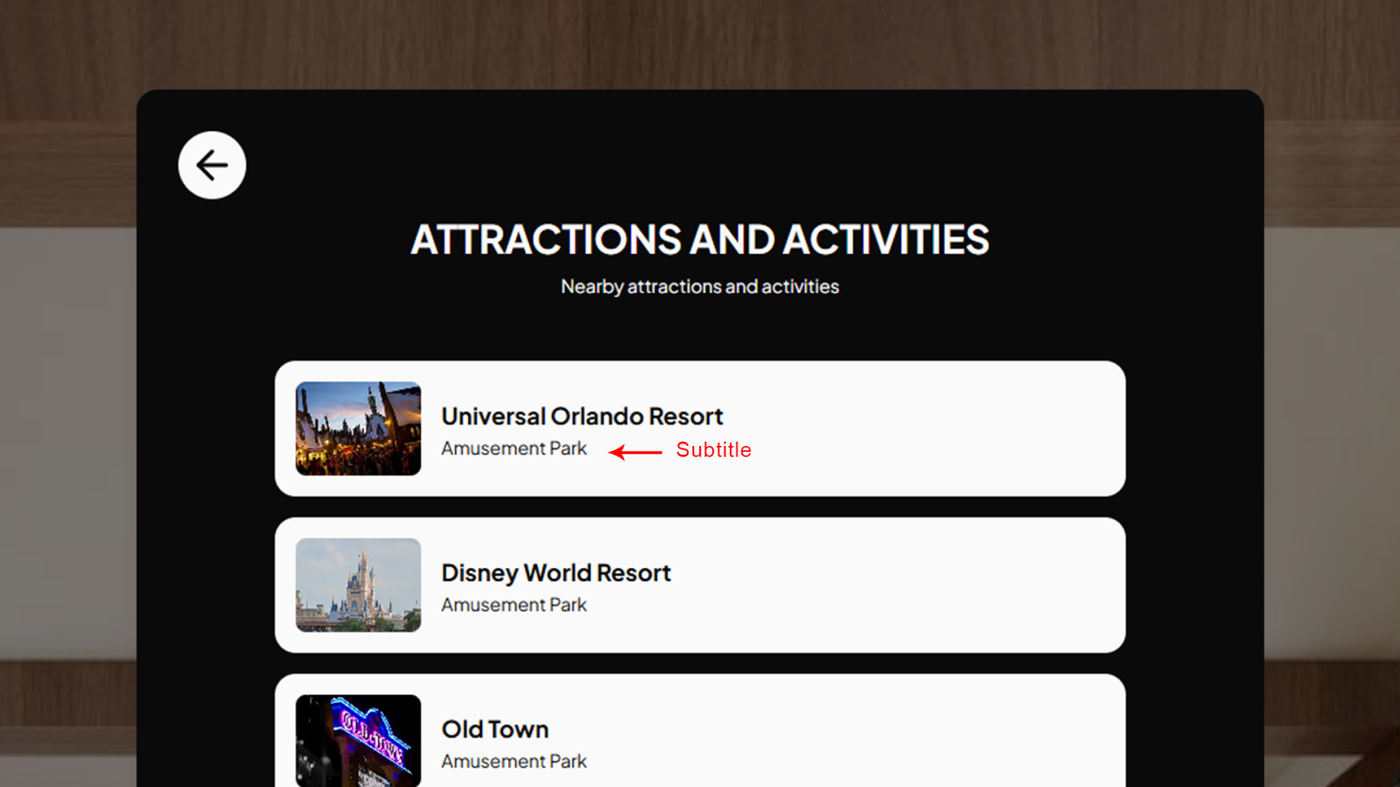
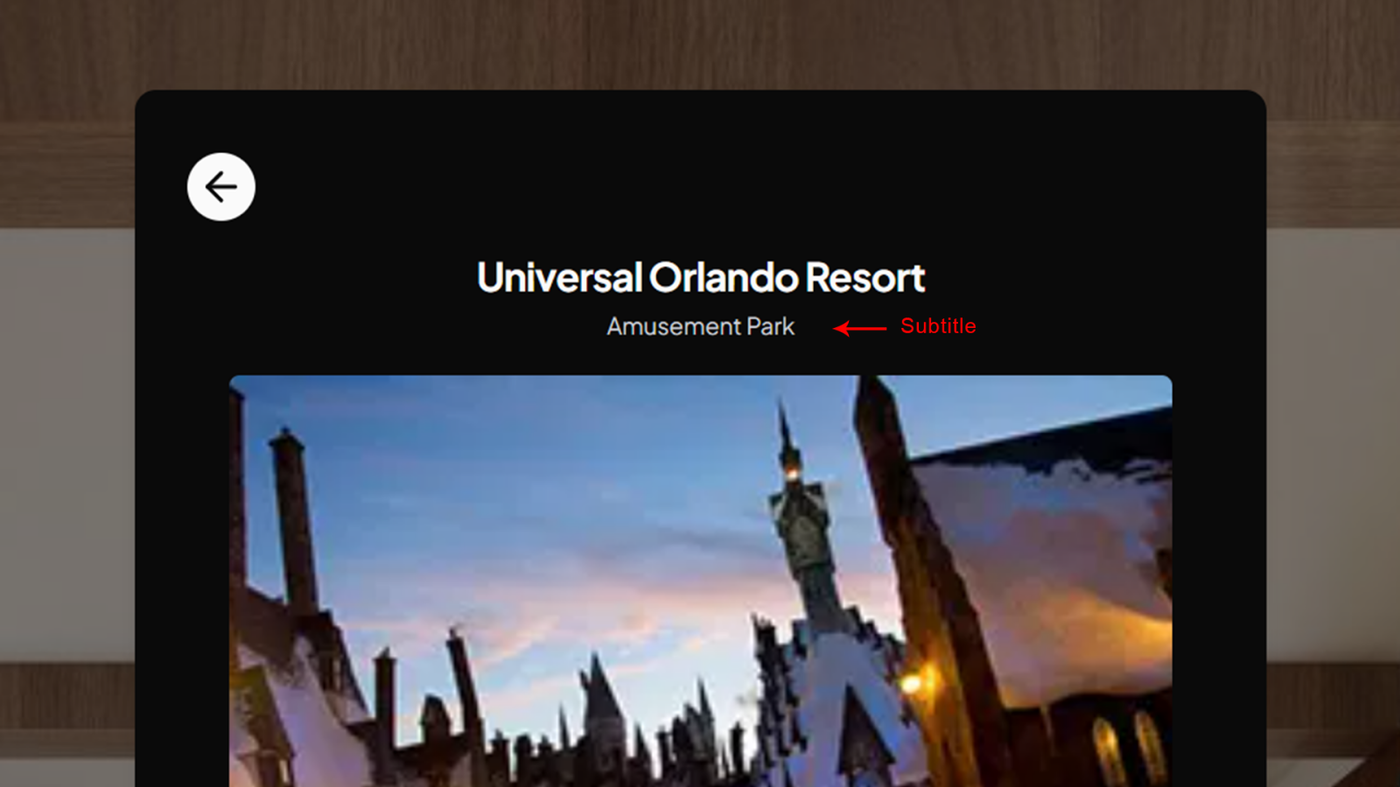
4. Subtitle - A field for the short text below the Item Title. Can be used to categorize items or be used as a brief summary for the item.
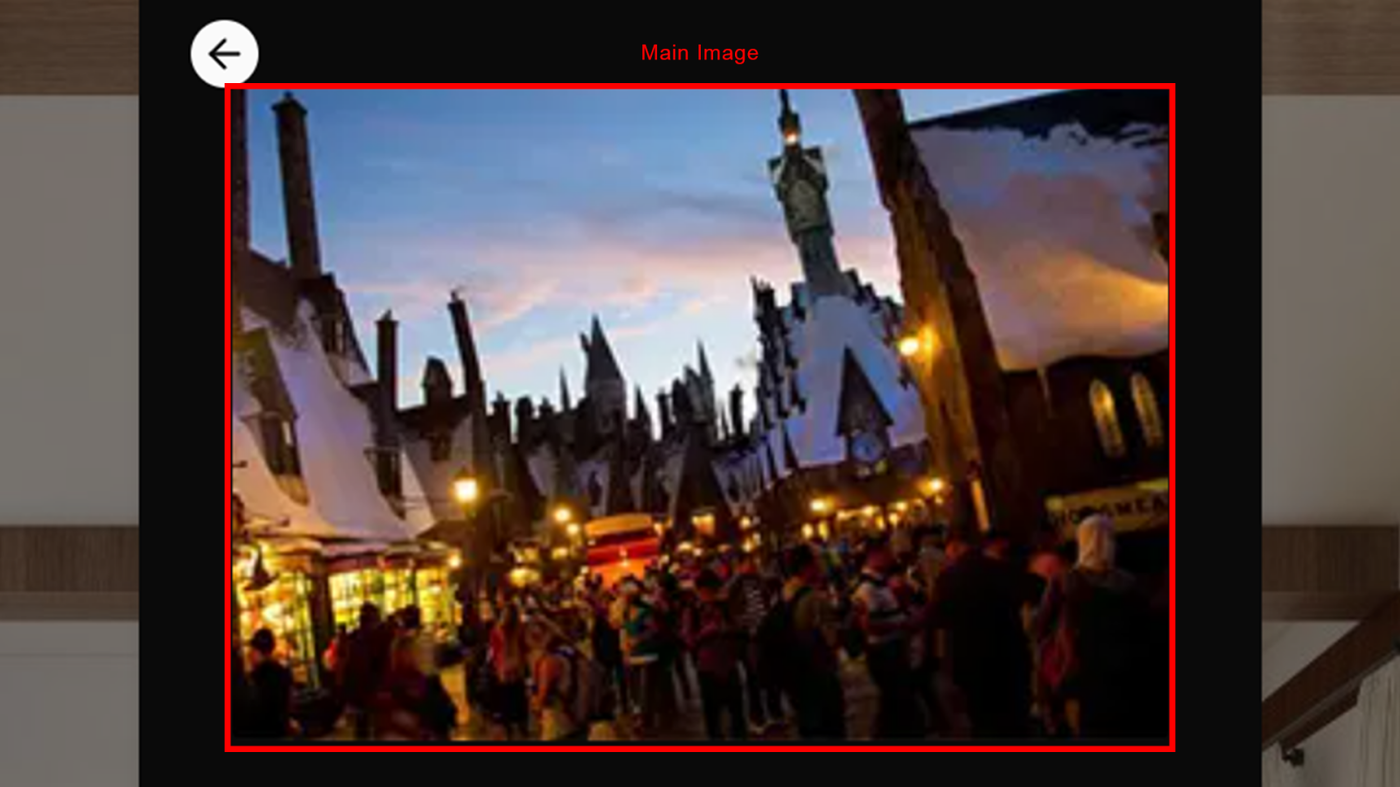
5. Main Image - The main image that is displayed on the section screen and item screen. Recommended image size is 800x600 in jpg format.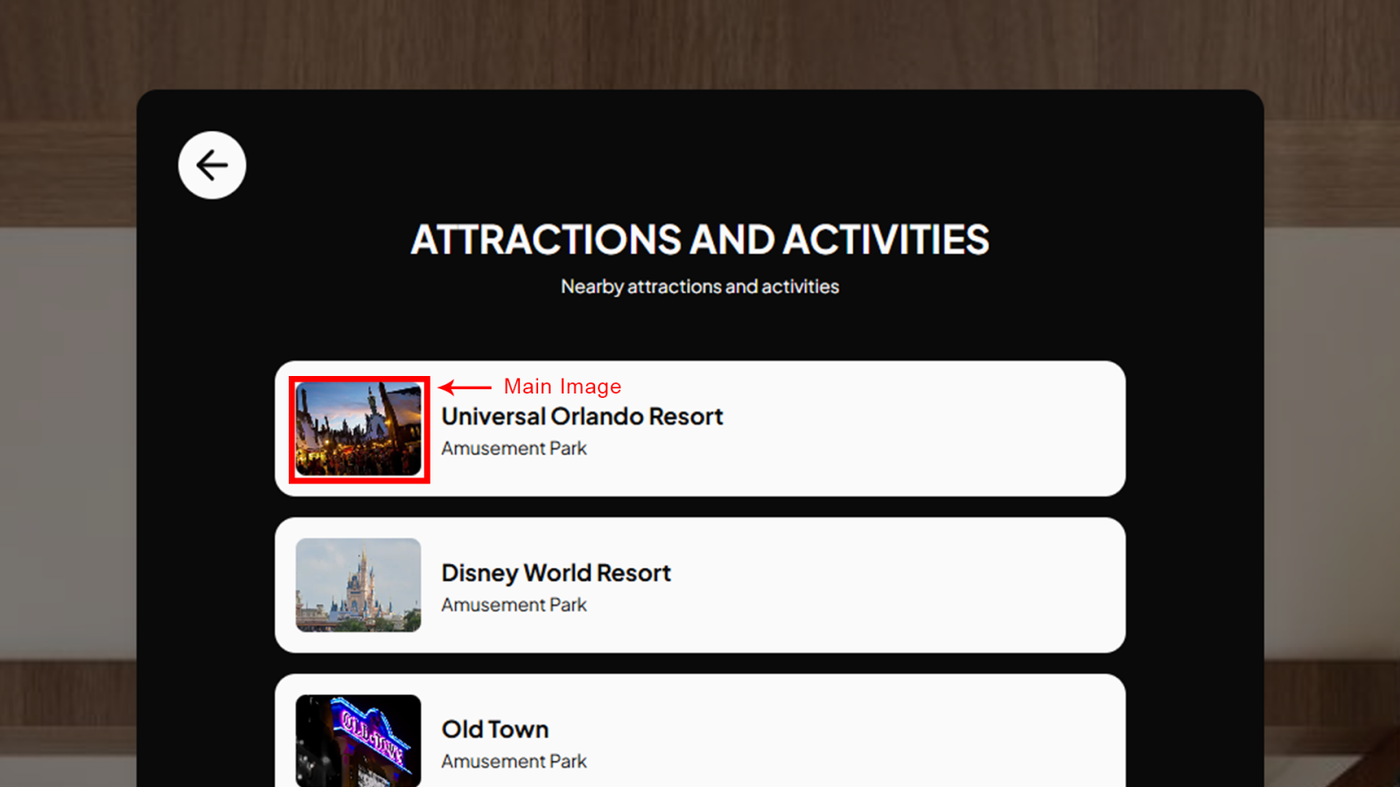
6. Video - **Coming Soon**
7. Content - The content for the item. It can be seen on the item screen.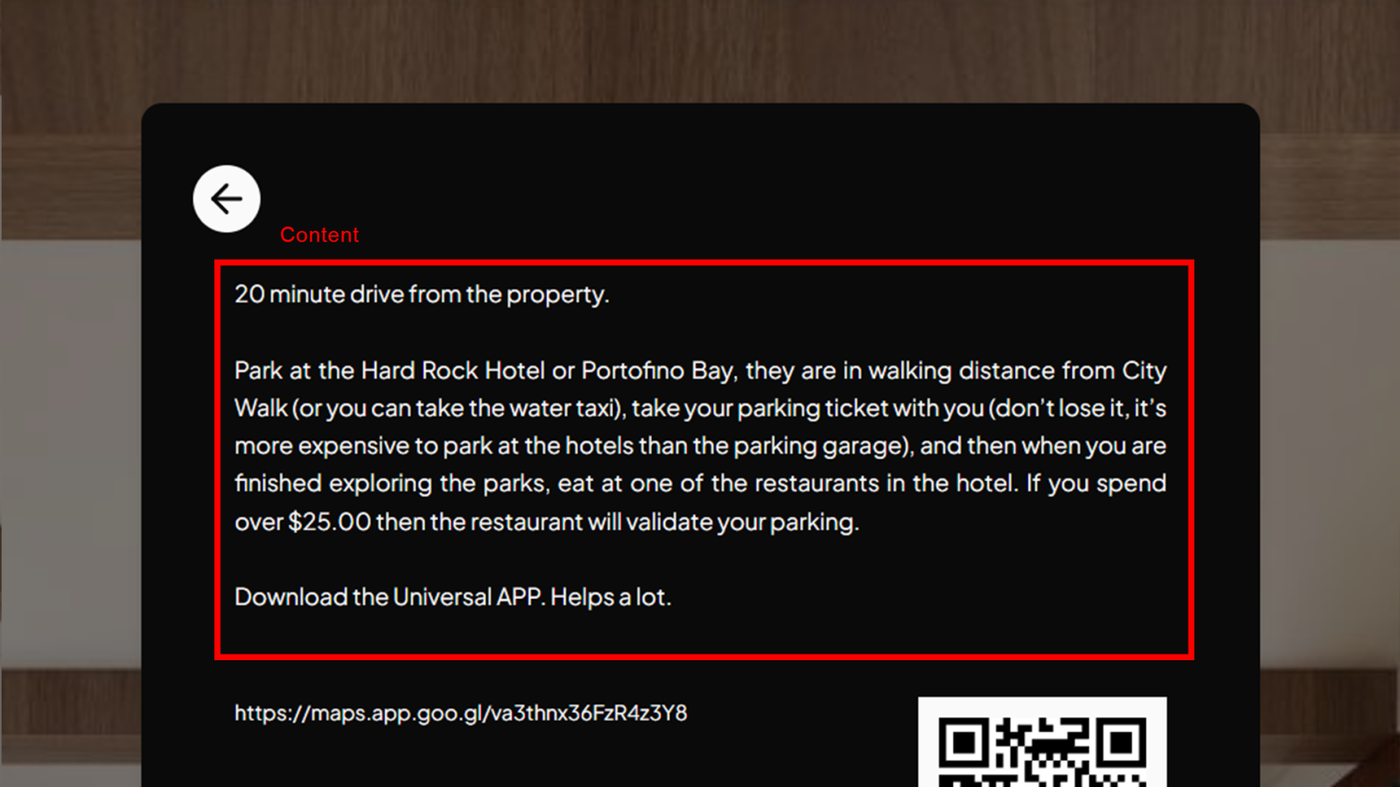
8. Link - Adding a link would display the link on the item screen, below the content. A QR code is also automatically generated. Guests can scan the QR to view the link on their devices. Make sure the URL you put in starts with https://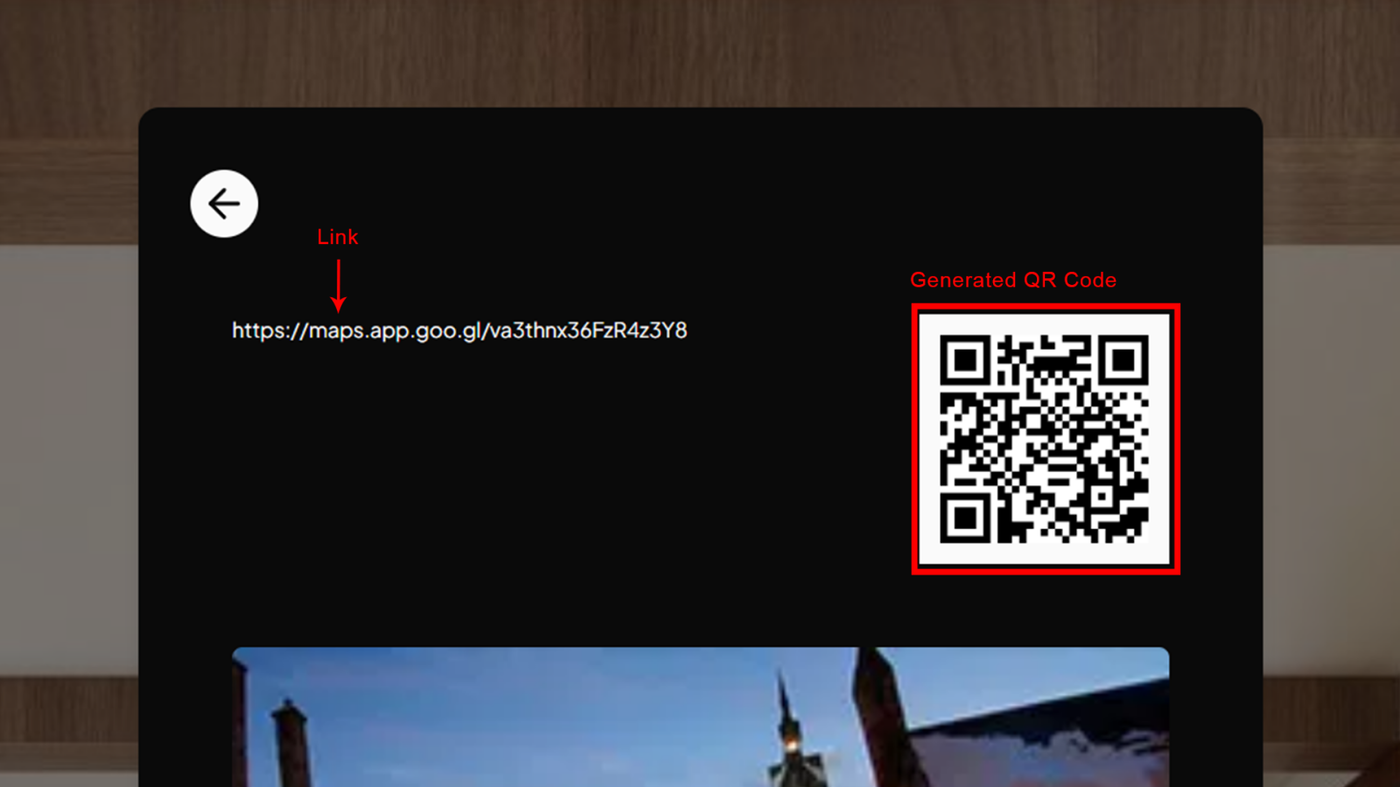
9. More Images - You can upload more images for the item. Number of uploads is limited to two images. Recommended size is 800x600 in jpg format.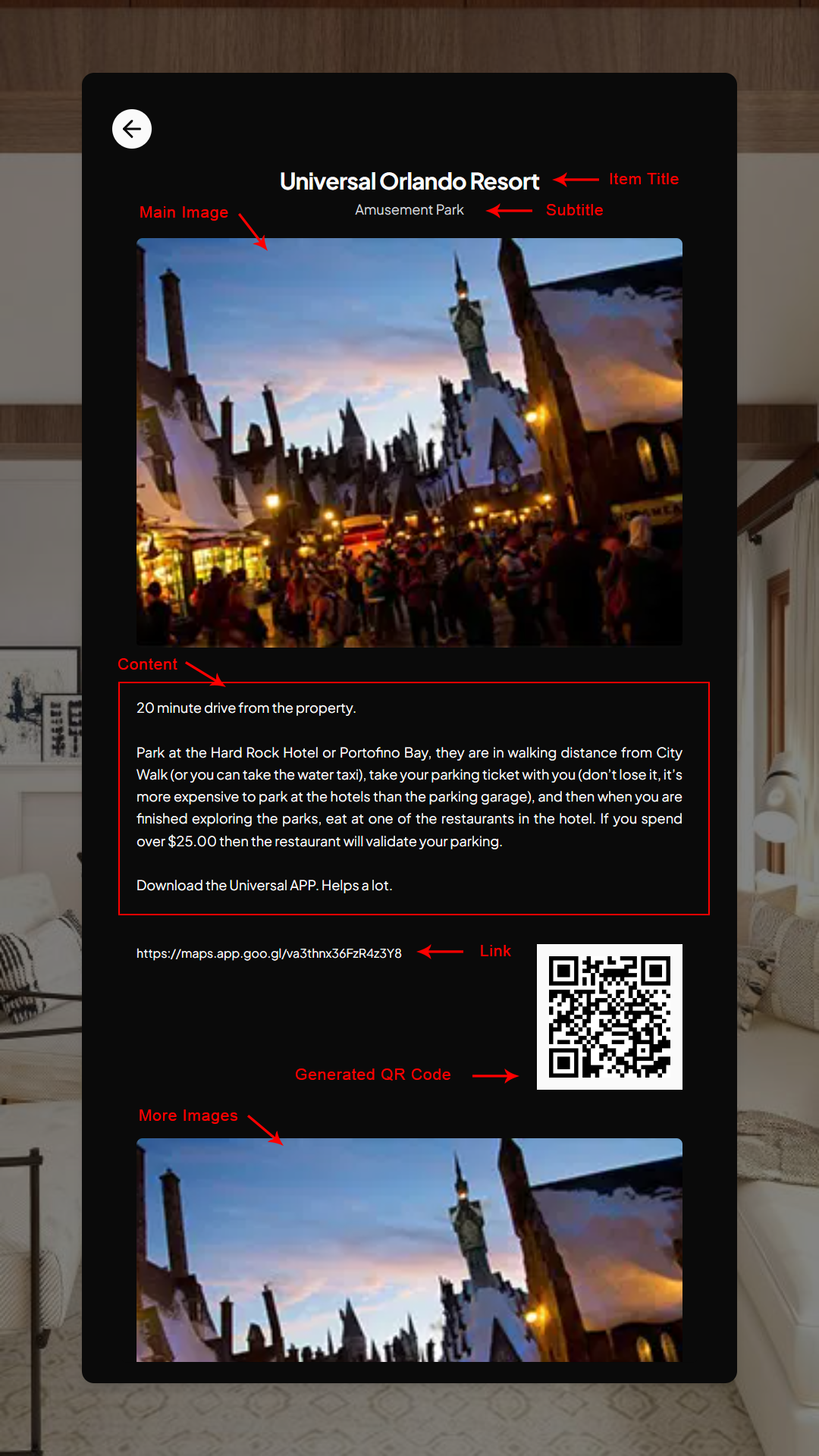
10. Make Featured - Marking the item as "Featured" will display it in the main menu screen of the device.