Adding a listing to your GuideScreen dashboard can be done in a few easy steps.
How to add a listing steps: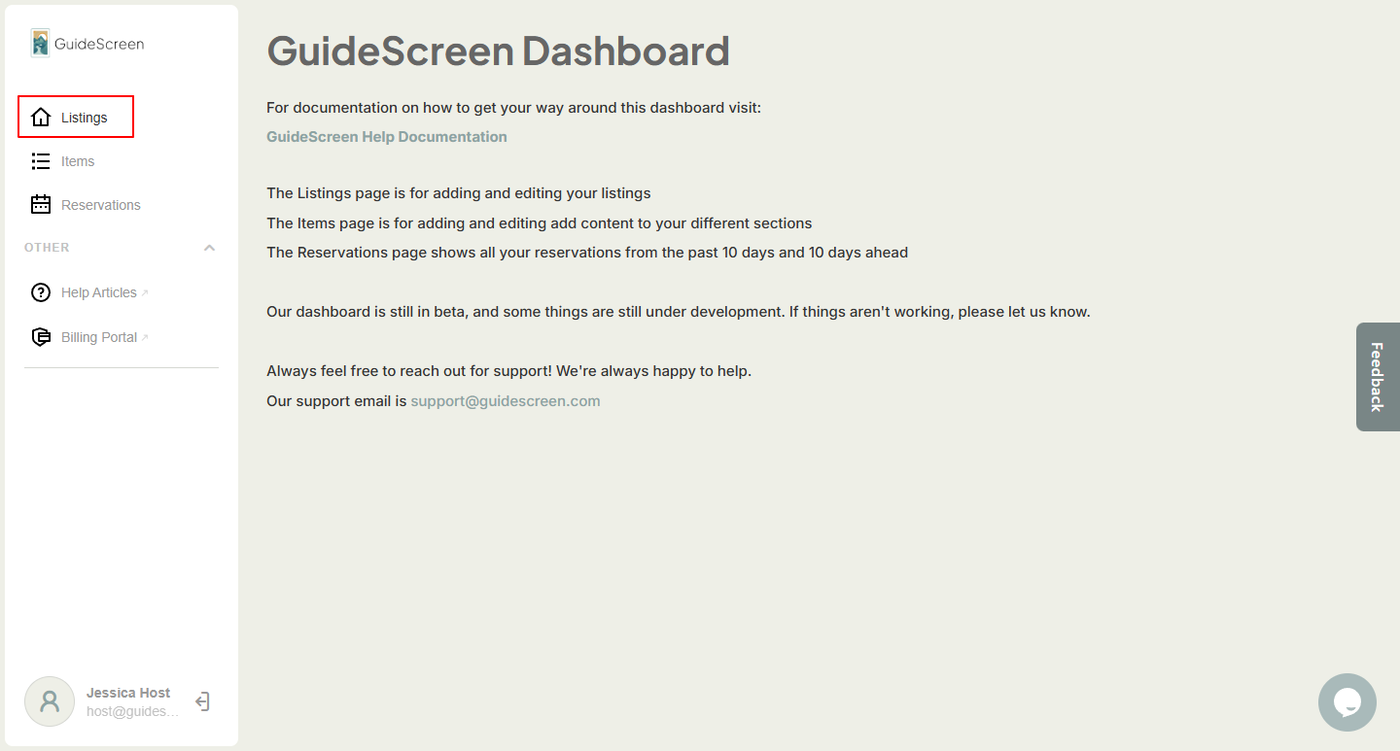
1. Login to your account, then click on "Listings". It can be found on the sidebar.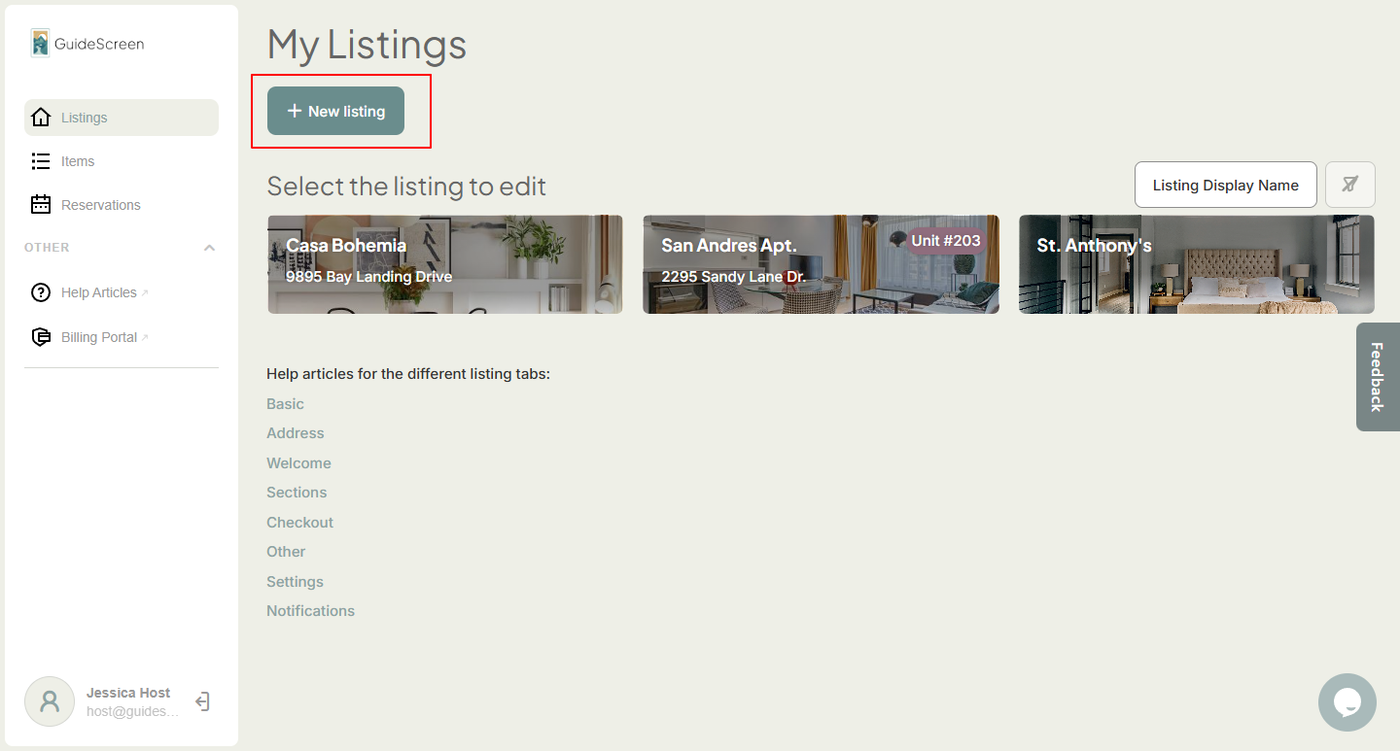
2. Click on the "+New Listing" button at the top.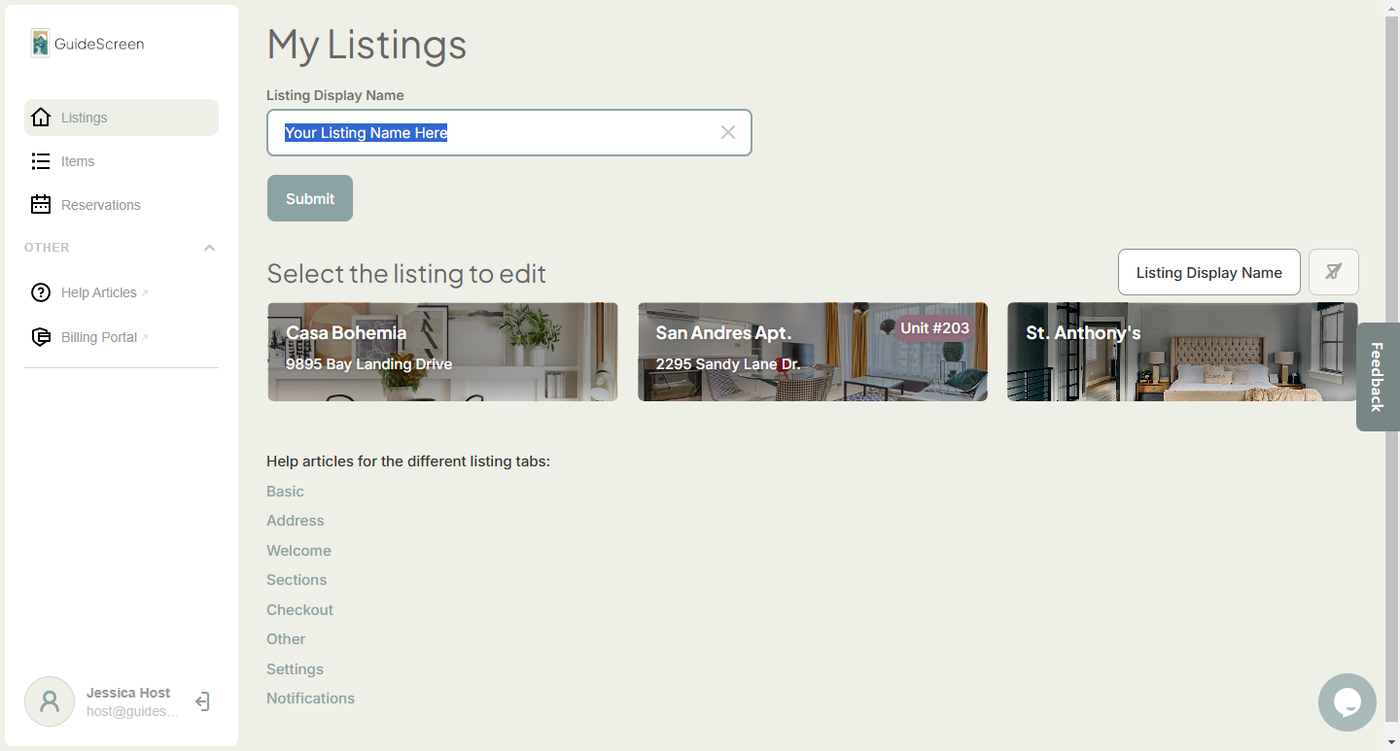
3. Fill in the Listing Display Name field (unique name for your property). Click "Submit" once you're done filling out the fields.
A system message and your property should appear under the "My Listings" screen once the listing has been created.
Next Article: Getting Started with the Listings Settings