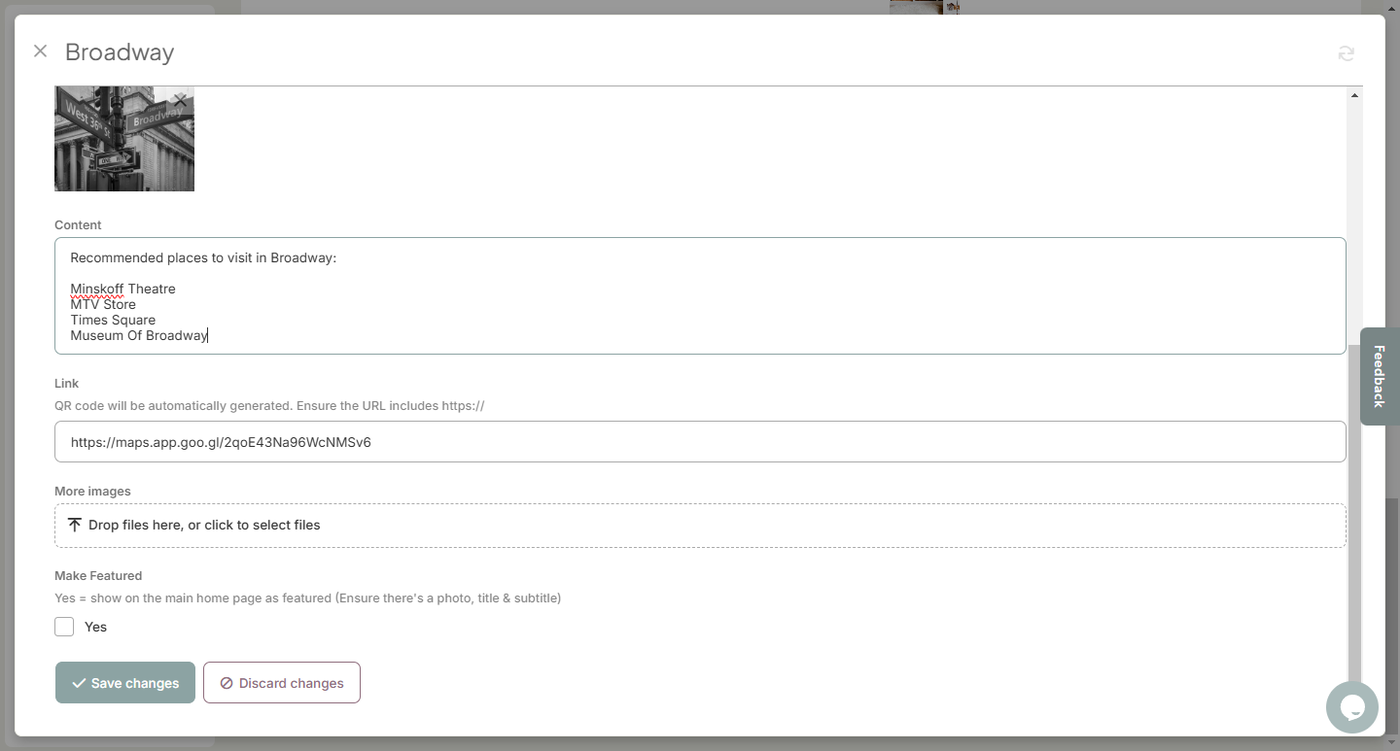
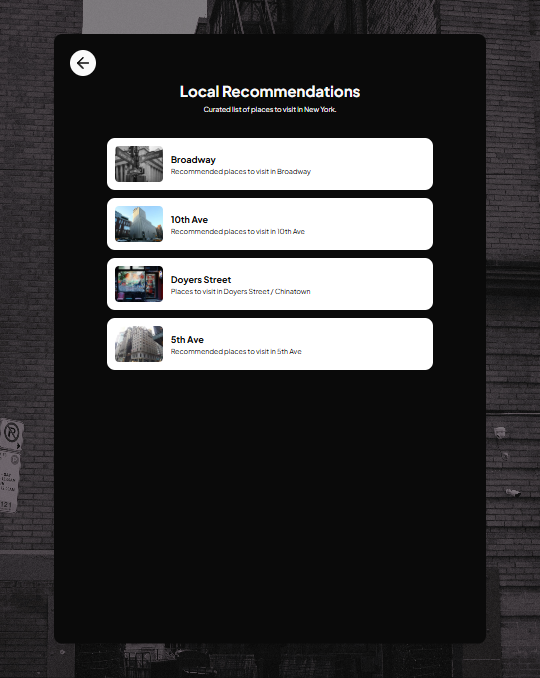
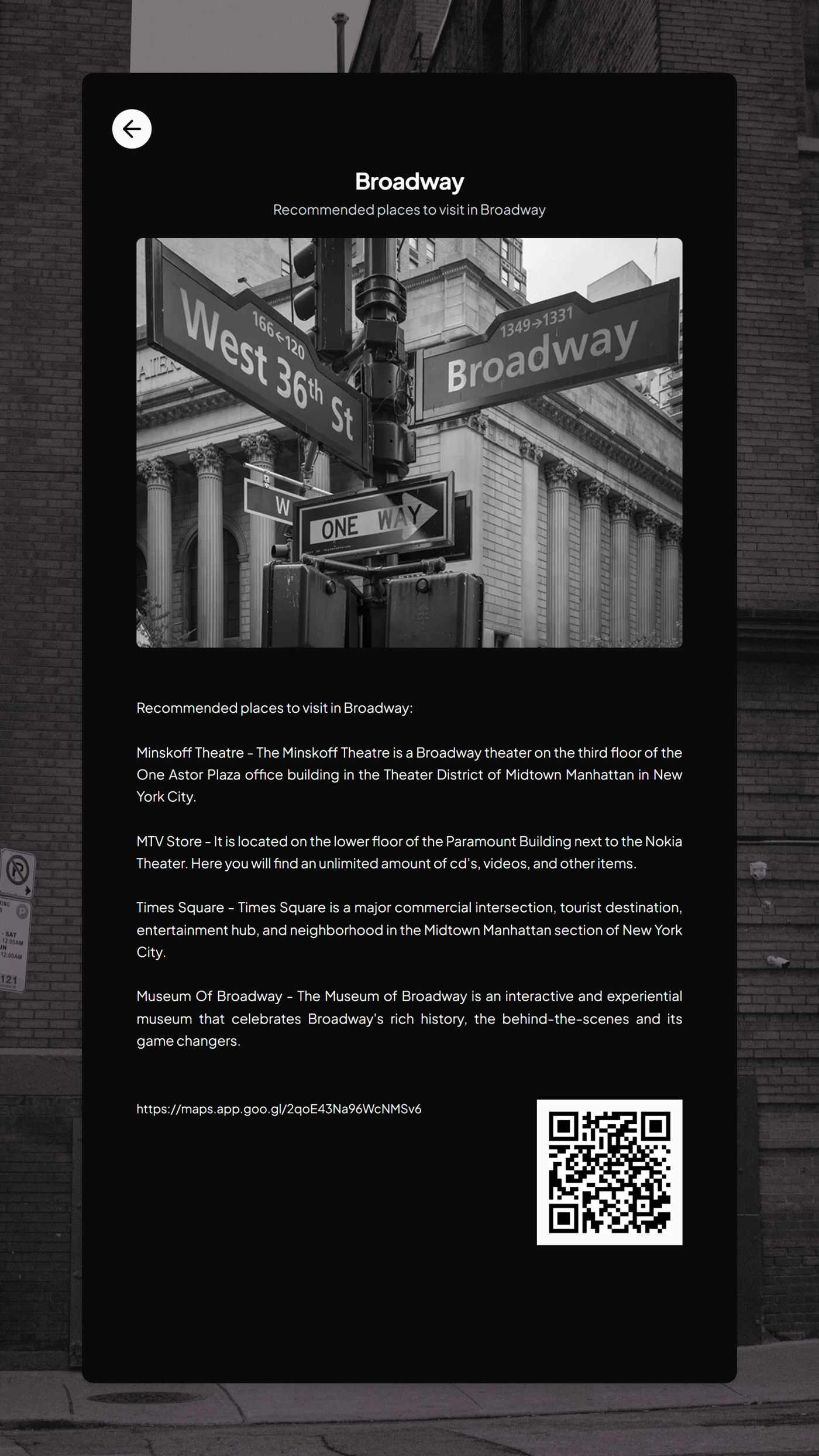
This setup is ideal for hosts who have a long list of recommended locations. The setup involves adding items in Google Maps and placing them as links in GuideScreen Items.
**Before proceeding, a Google account needs to be setup. If you value your privacy, it is best to make a Google Account for your property first, then setup the map details there.**
Steps:
1. Login to your GuideScreen Account.
2. Select the property that you wish to edit.
3. Go to the Sections Tab, select which section you want to place the items in (A, B or C). Then add an appropriate title for the section, say "Local Recommendations then click "Save Changes".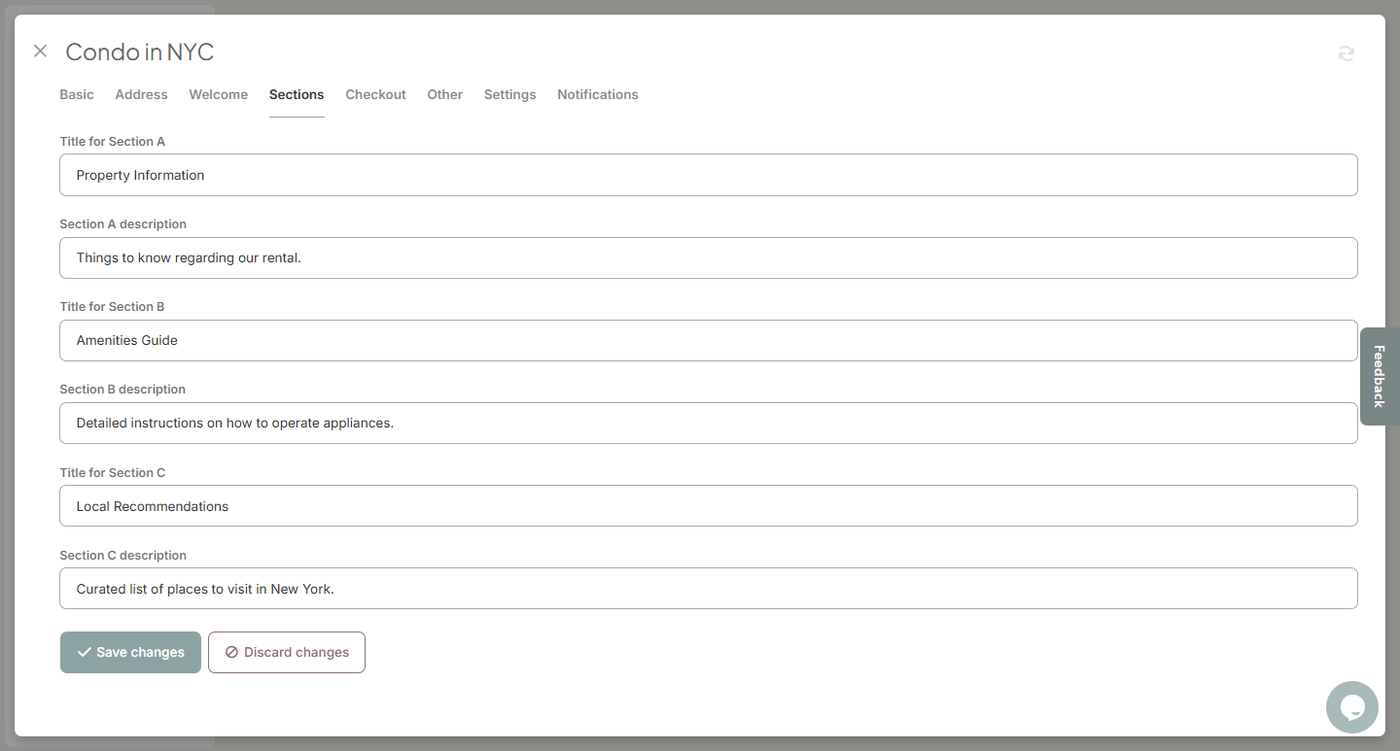
4. Decide on how you want to curate your map. Examples of this is you can curate a list based on category, say:
- Dining
- Shopping
- Activities
or by Location:
- W 43rd St
- W 16th St
- Canal St
Then add these as "Items". Don't forget to associate the items to the correct property.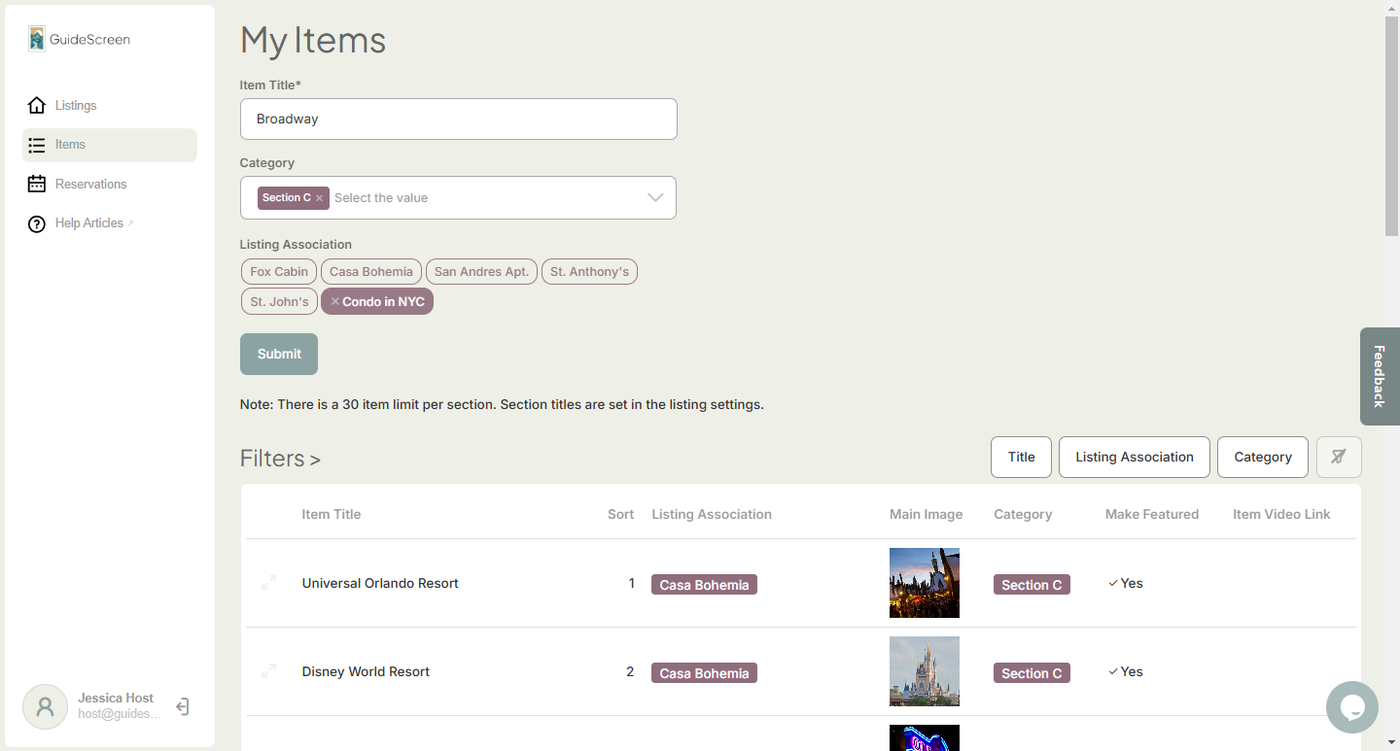
5. Once your list is complete, head over to Google Maps.
Google Maps Steps:
1. Search for a location that you want to add to your curated list using the search bar.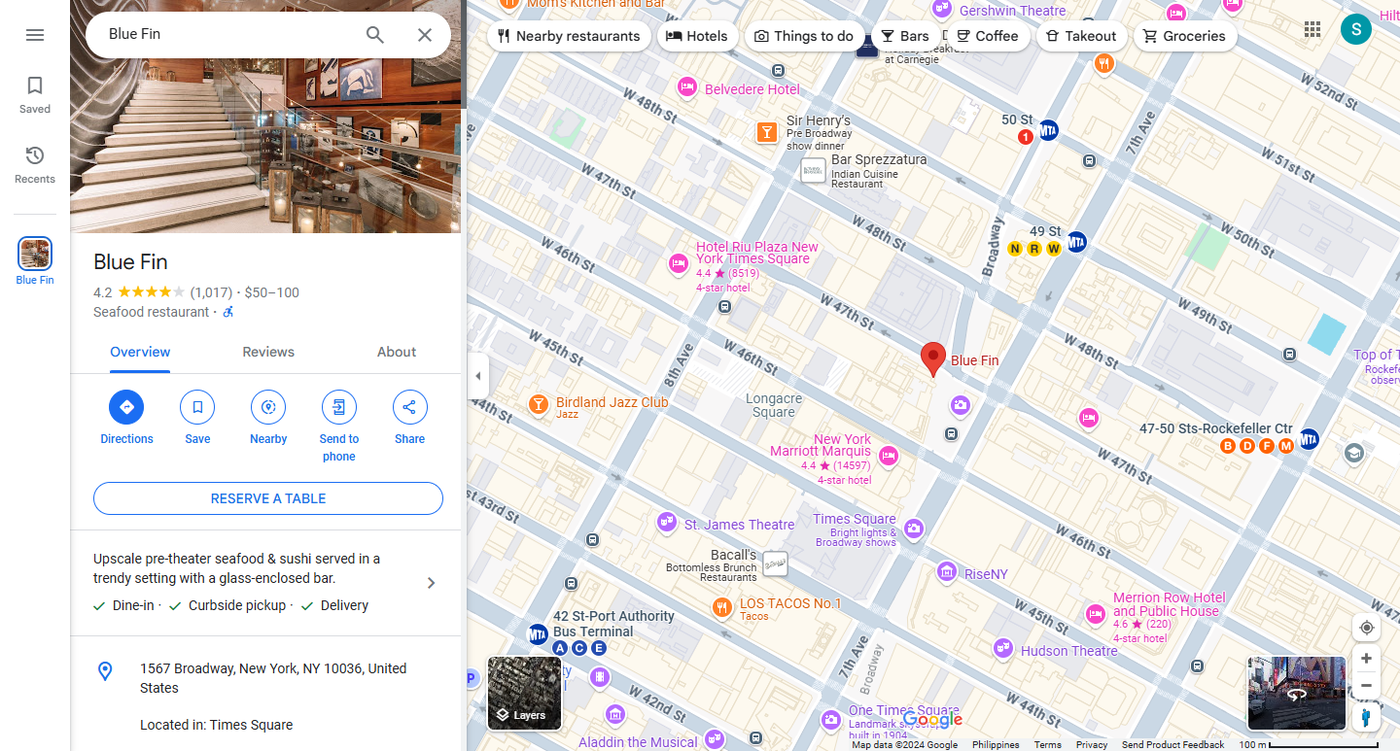
2. An info section will appear on the left if the location is already added in Google Maps. If the info appears, click the "Save" icon. A menu will appear. Select + "New List" and then name the list based on how you curated your list. Add more items to your list by using the search bar.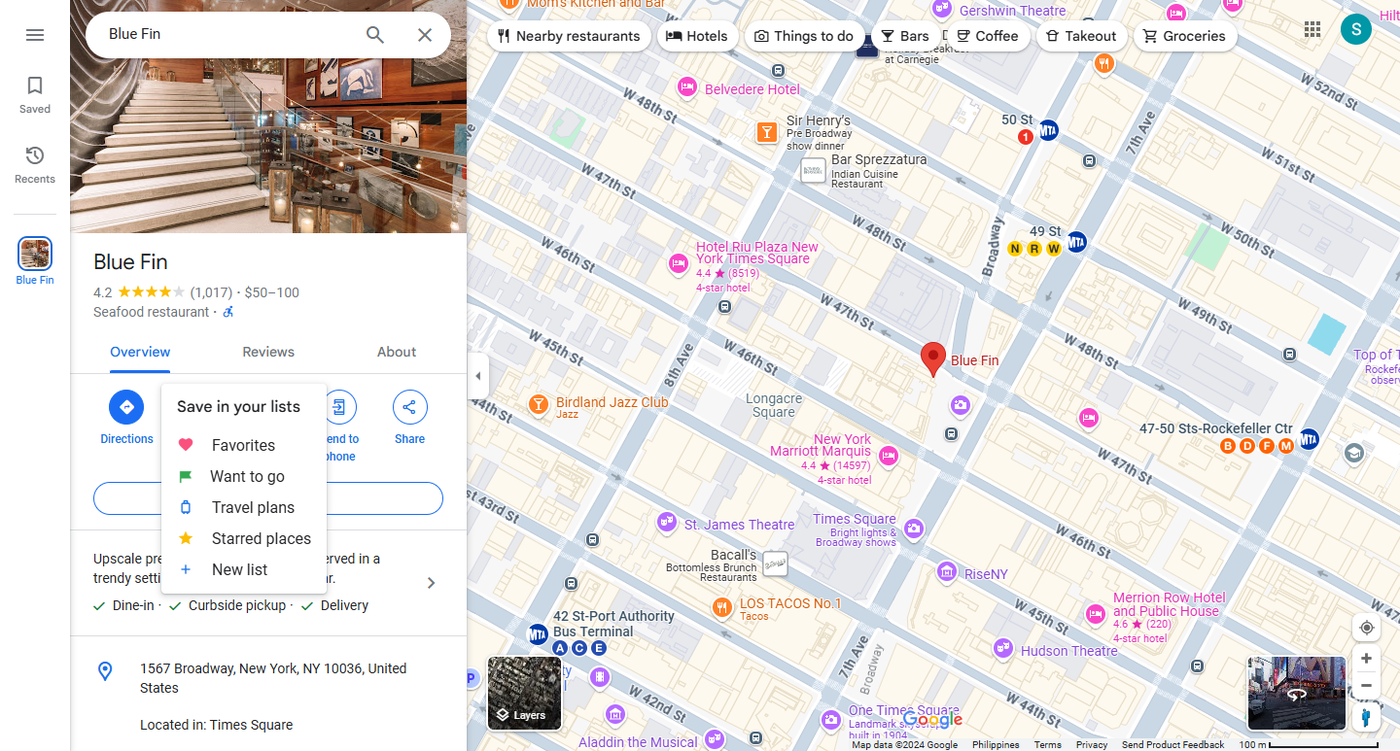
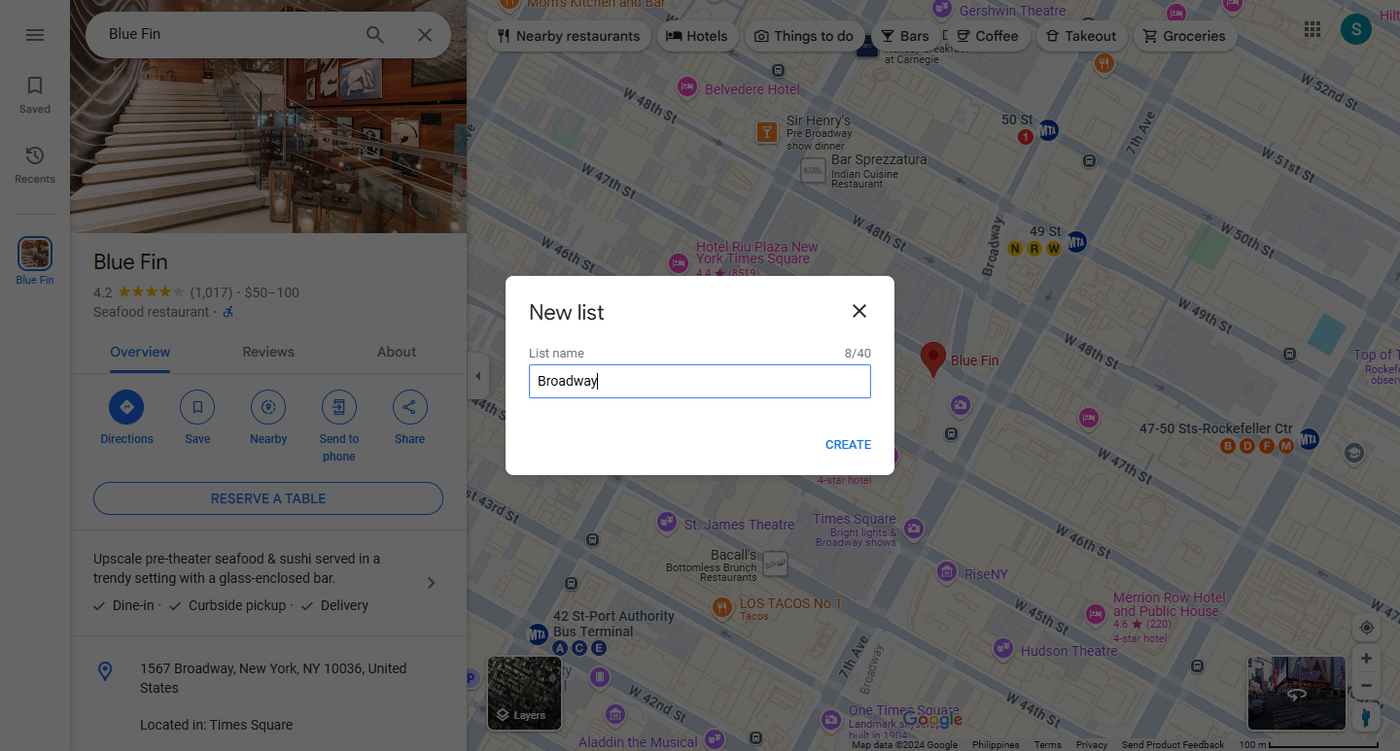
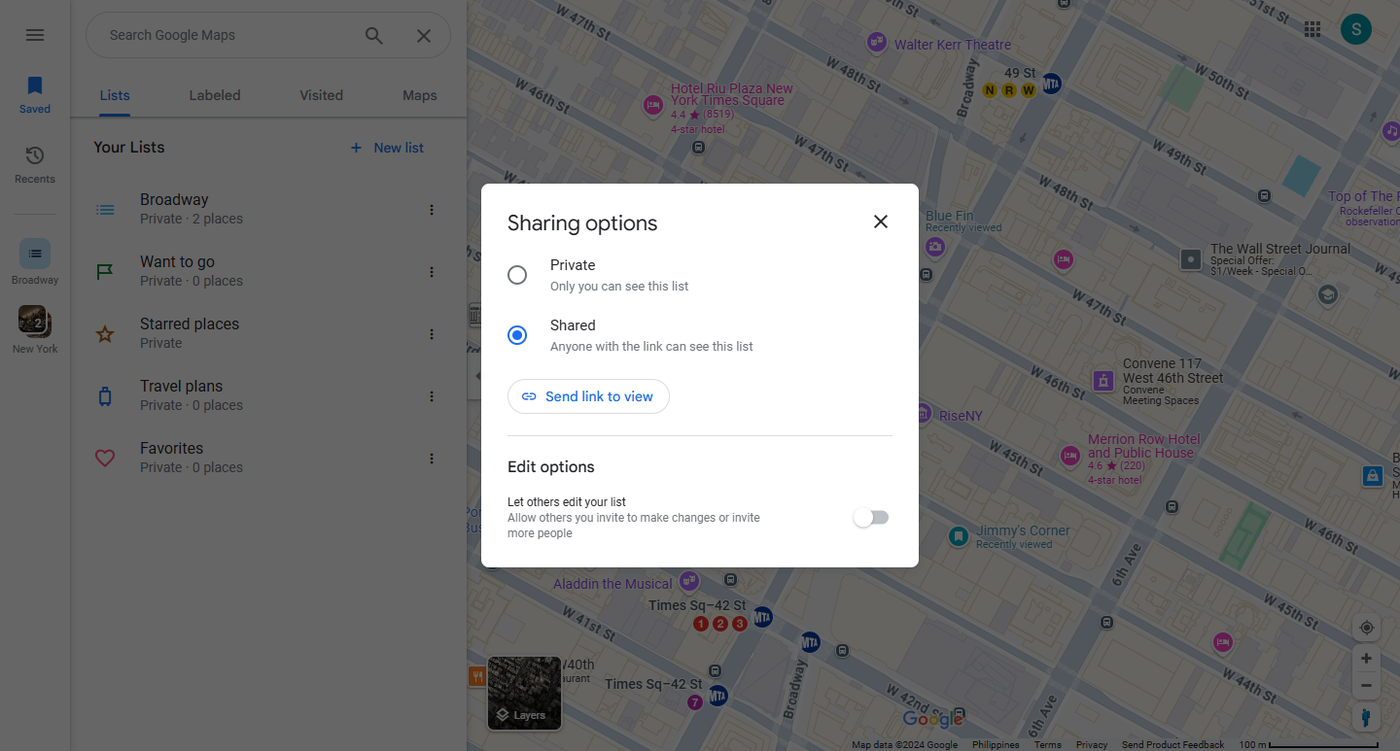
3. Once you're done with your list, click "Saved" on the sidebar. It would show you the list you just saved in the previous step. Click on the skewer icon to the right of the list. Options should appear. Select either "Send link to view" or "Sharing options".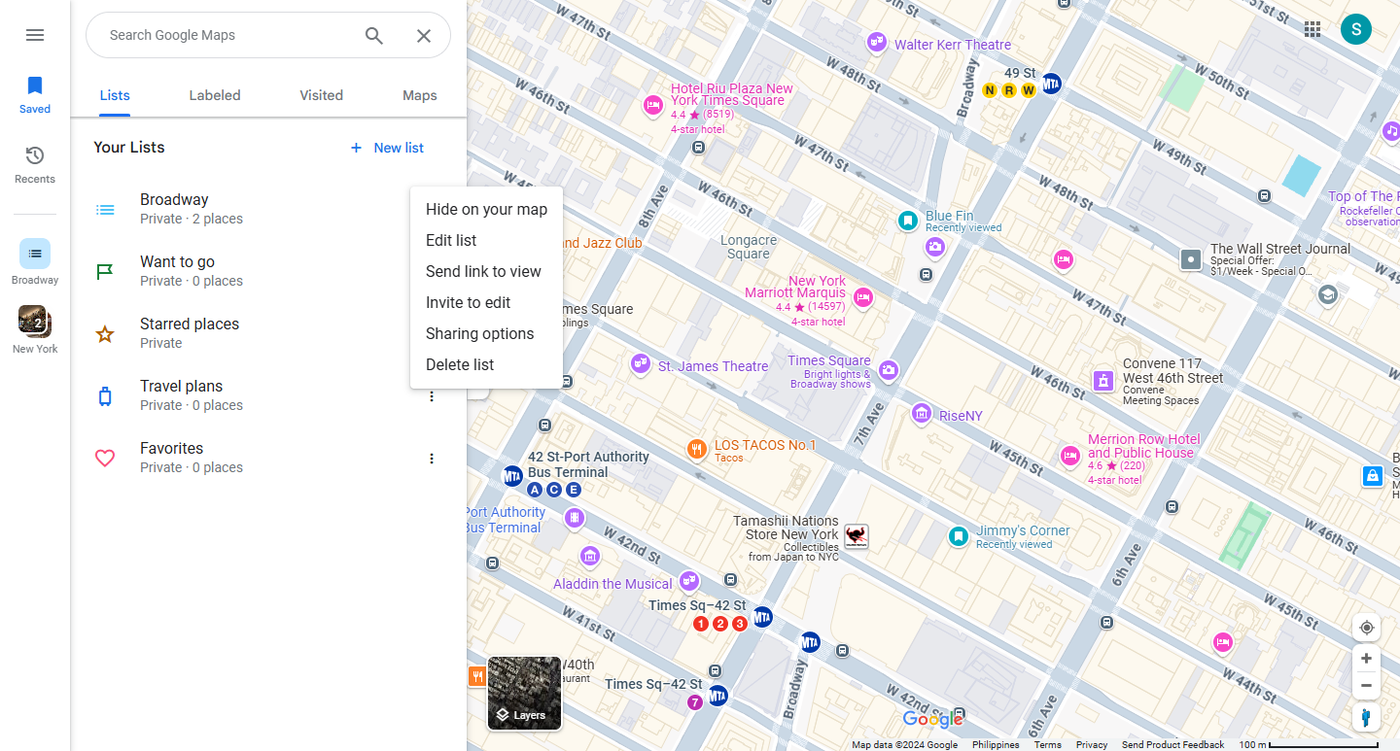
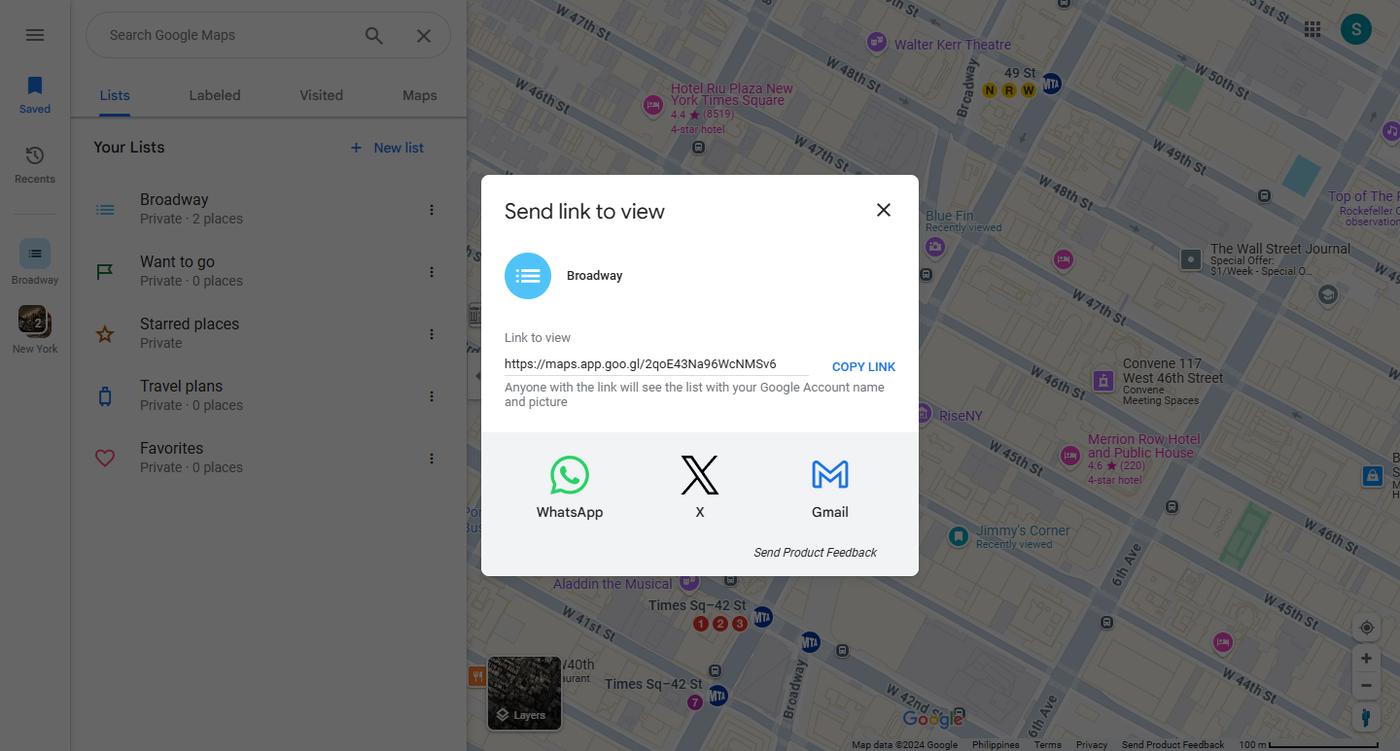
4. After getting the link, head back to the item you created in your GuideScreen dashboard.
Paste the link you got from Google Maps on the Link field of your item. The link will be displayed, together with the generated QR code. Guests will now have the ability to scan the QR code and save the locations from your map to their devices.