What is Venmo
Venmo is a popular peer-to-peer payment platform owned by PayPal, enabling users to send and receive money quickly. It combines financial transactions with social networking features, allowing users to add messages or emojis to payments and share them with friends on a social feed. Designed for convenience, Venmo is often used to split bills, pay for services, or transfer money among friends. As of 2023, the platform boasted approximately 83 million active users, primarily in the United States, reflecting its widespread adoption among younger demographics
Using Venmo to accept payment for products & additional services
Adding a Venmo link to your GuideScreen device is a simple process, making it effortless for guests to complete payments.
Steps:
1. Login to your GuideScreen Admin dashboard
2. Select the listing you want to add an item to in "Listings".
3. Select the "Sections" tab and add a section where you want the item/s to appear.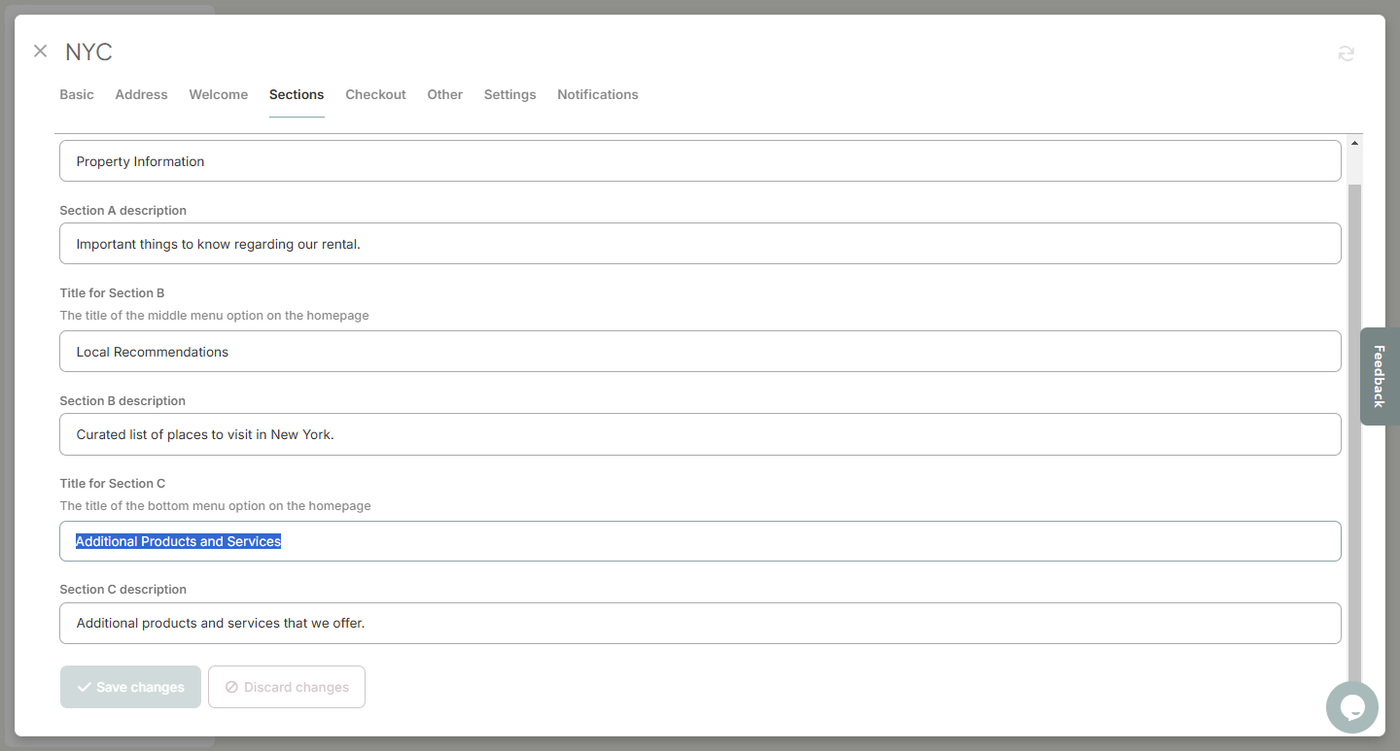
4. Close the screen and head over to the "Items" menu in the sidebar, then select "+New item".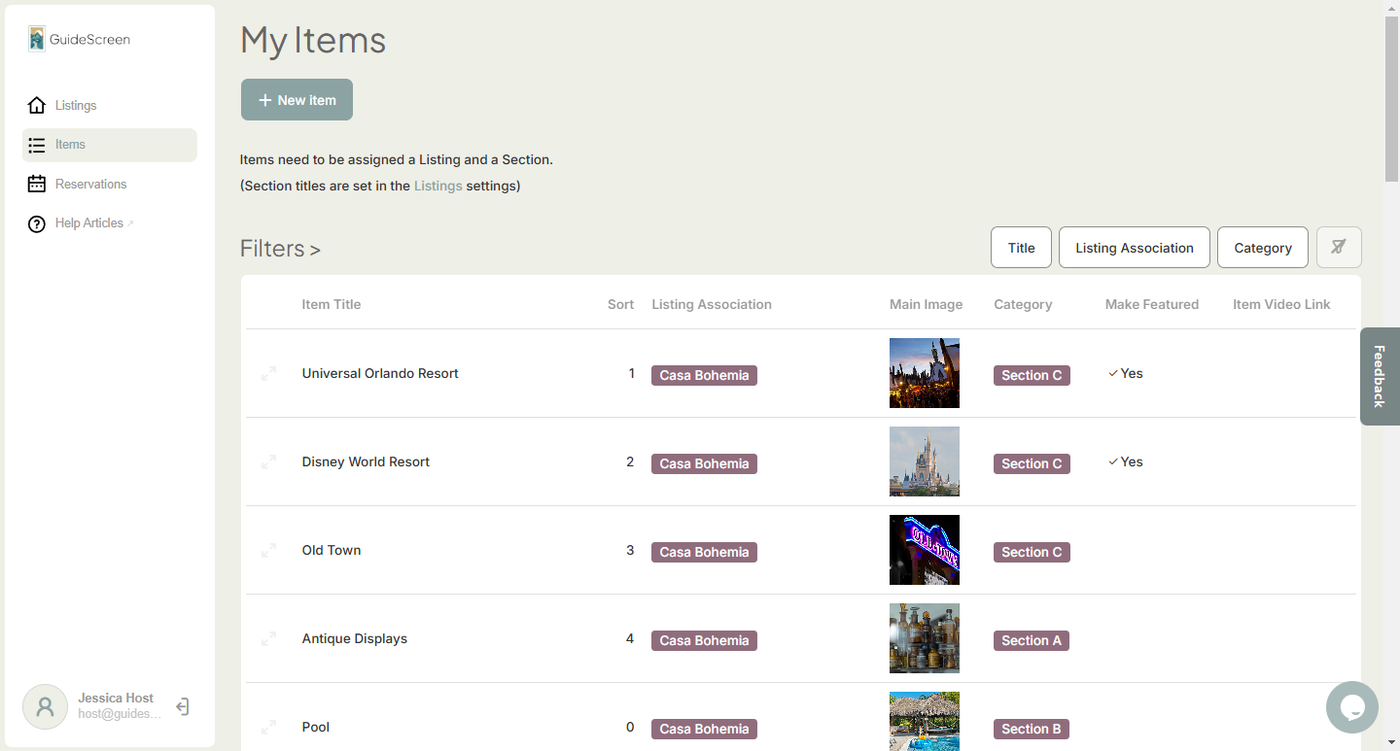
5. In the Item screen, Select the section that you added in step 3, then select the listing which you want the item to appear in in Listing Association. Finally, add an Item Title, Main Image, Content and your Venmo link on the Link field.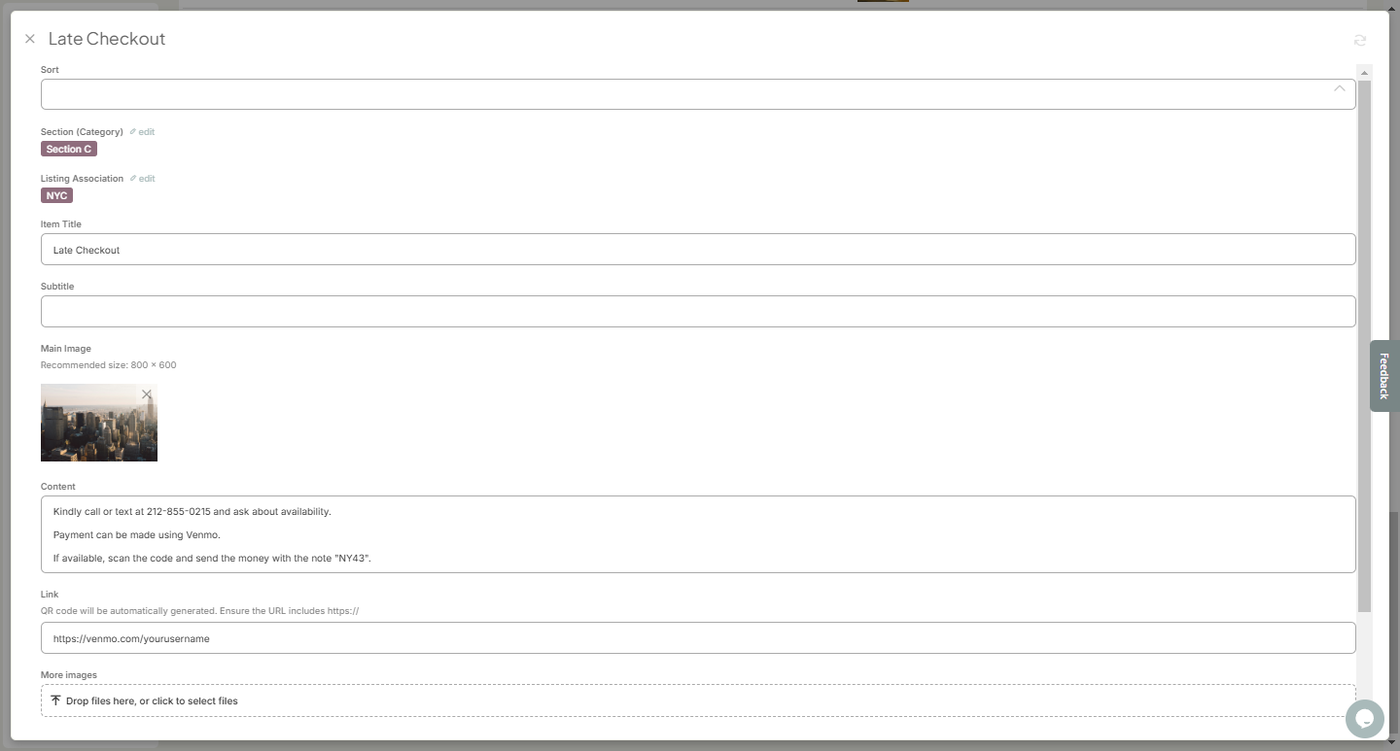
Items with Venmo links examples:
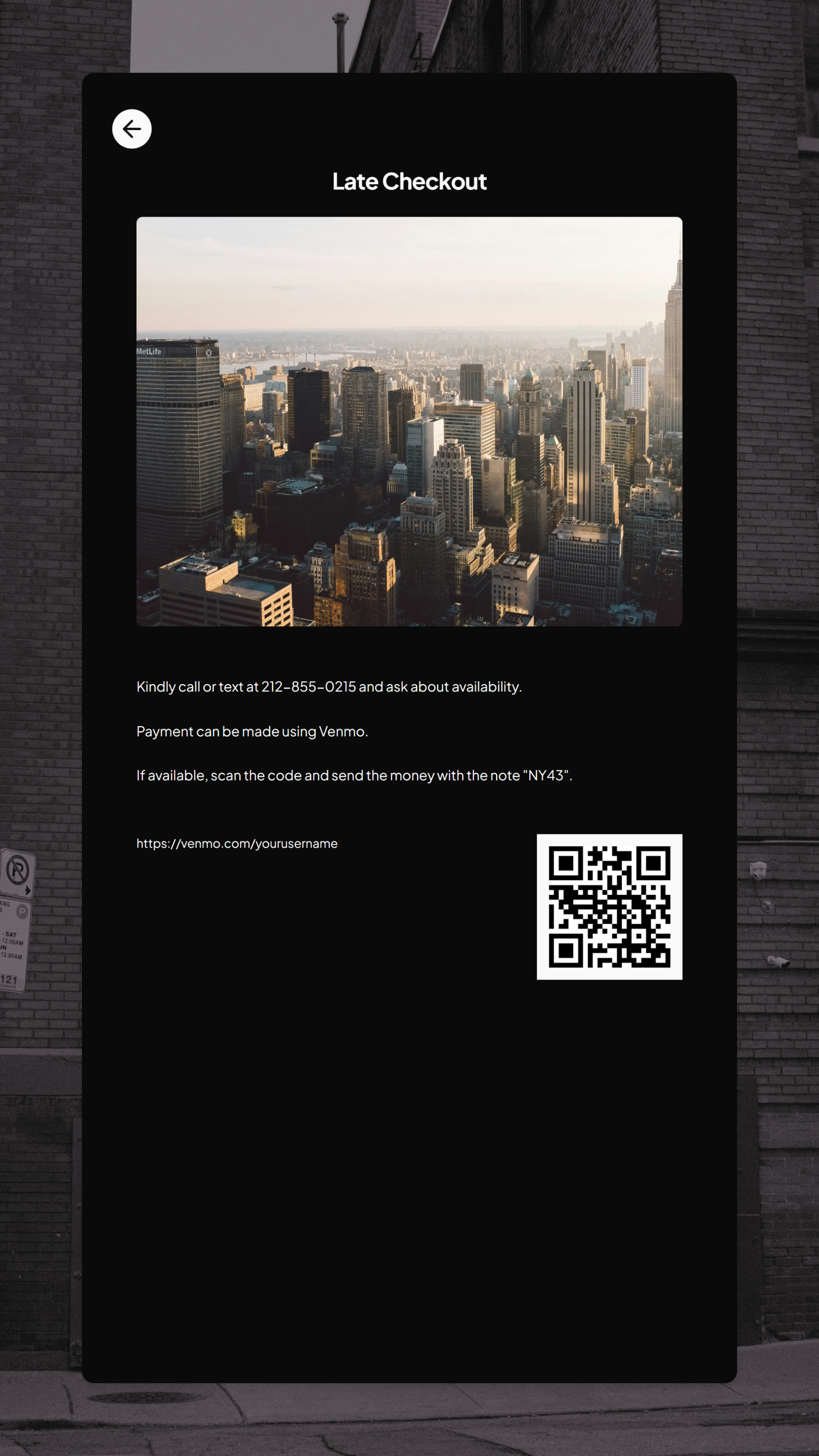
Single product / service with a personal Venmo link - In this example, a single item for "Late Checkout" is created. A note in the Content field tells the guest to text or call first to check for availability, then instructs the guest to add a note with a specific code that is used as an identifier for the product / service.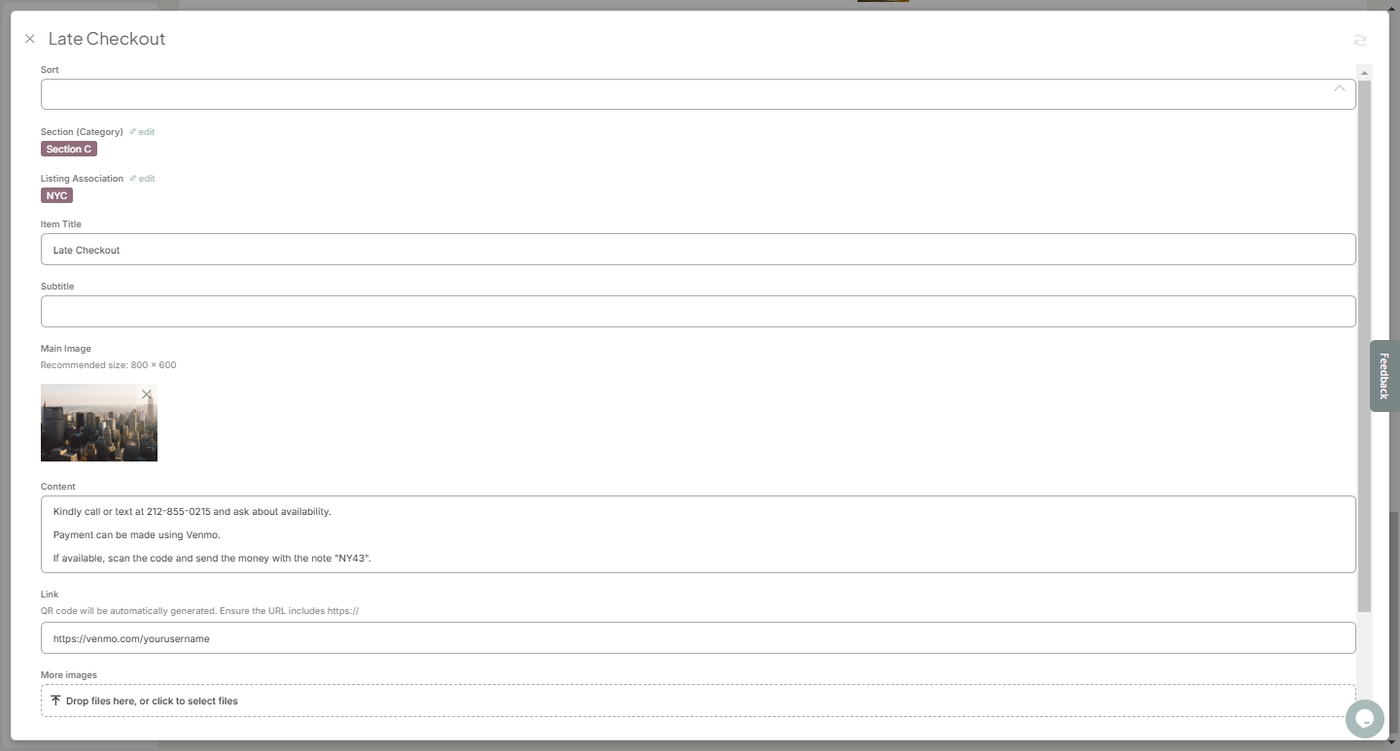
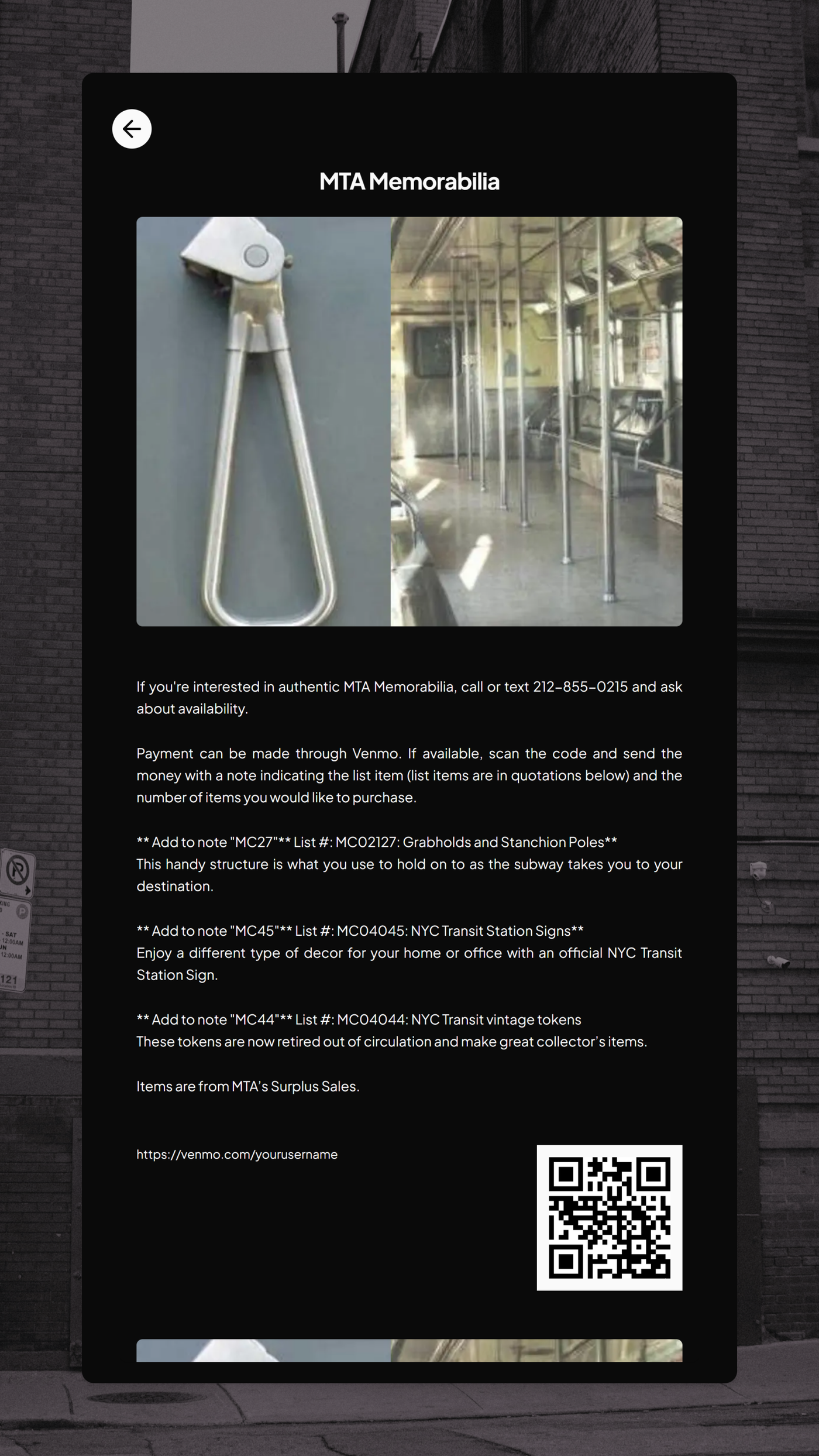
Multiple product / service with a personal Venmo link - In this example, multiple items are being offered in a single item. A note in the content field tells the guest to text or call first to check for availability of the items, then instructs the guest to add a note with a specific code for the product they want to purchase and how many they would like to buy.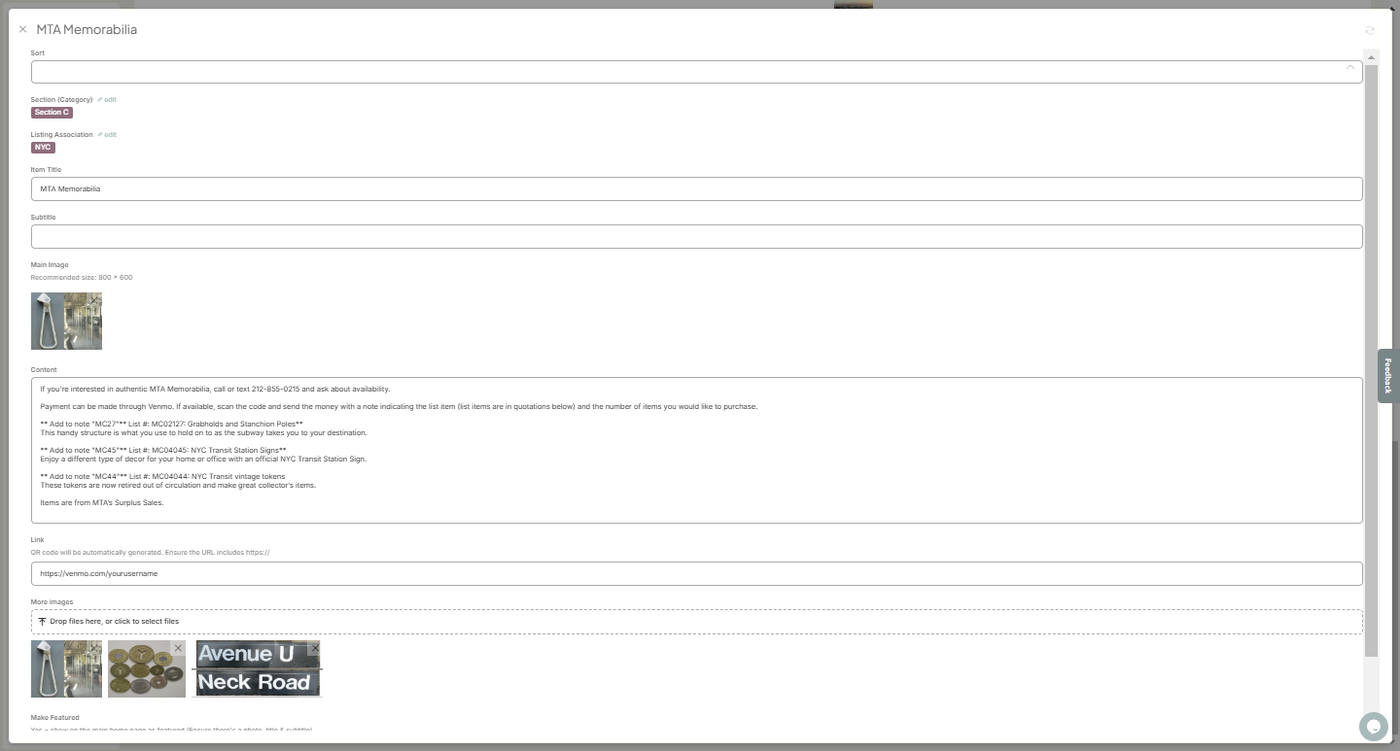
If you don't have a Venmo account, please refer to this article on how to setup one:
https://help.venmo.com/hc/en-us/articles/209690068-How-to-Sign-Up-for-a-Personal-Venmo-Account.