Adding a reservation manually is a simple process.
Steps:
1. Login to your GuideScreen Dashboard, then click "Reservations" in the sidebar.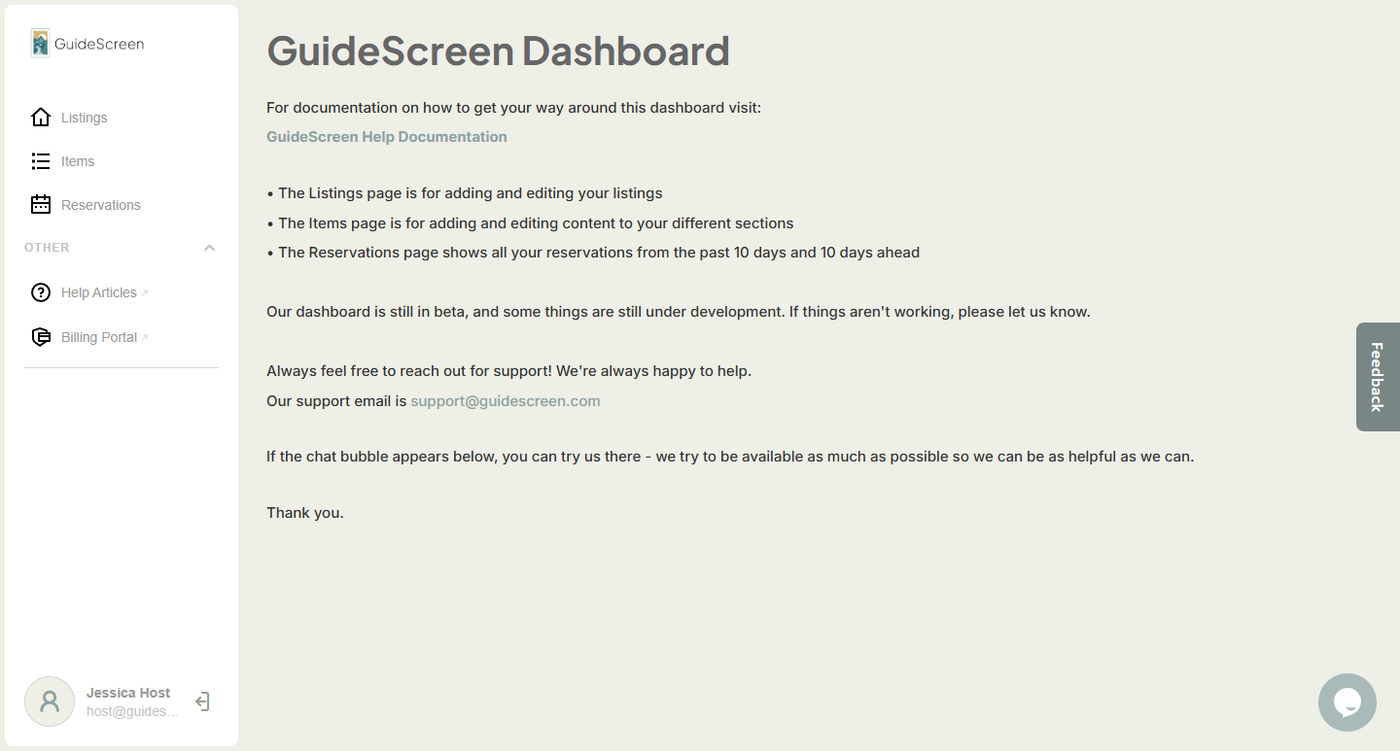
2. Once you're in the My Reservations screen, click on the "Manual Reservations" tab.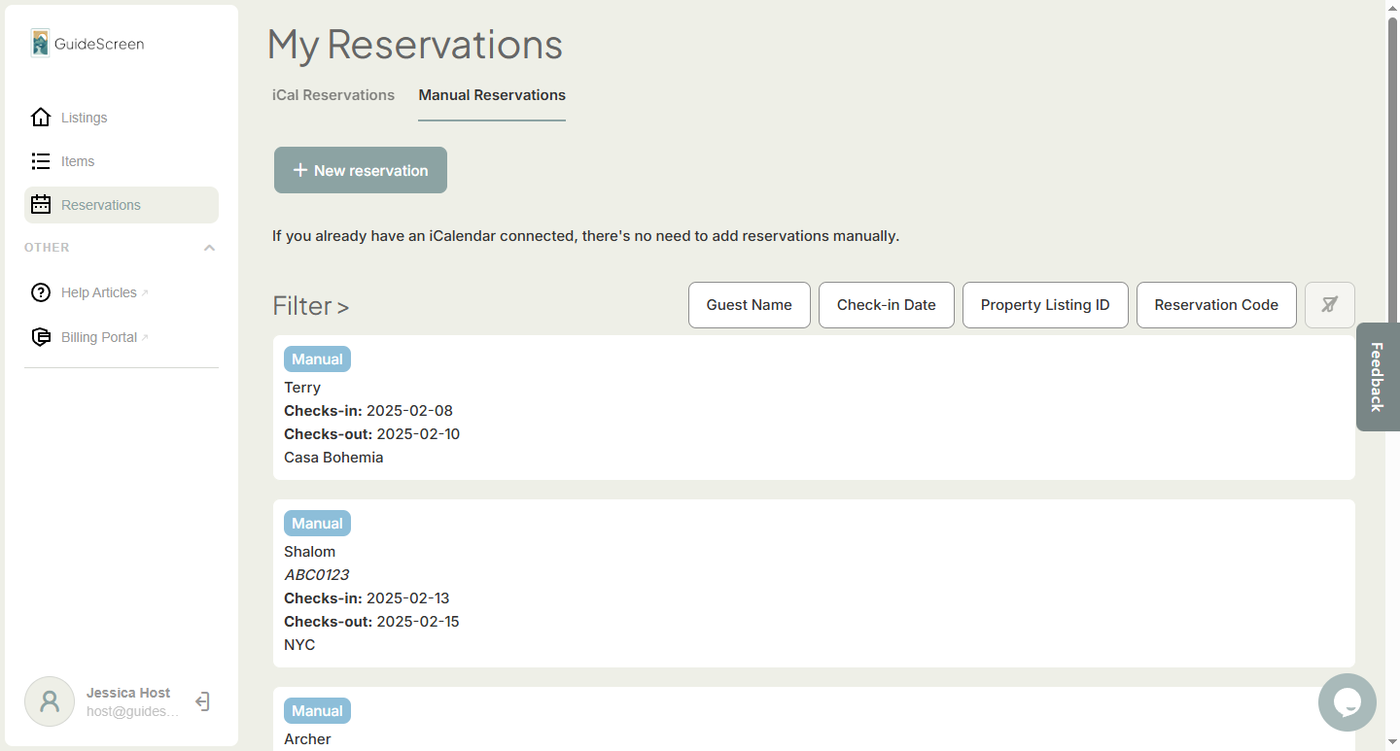
3. Click the + New reservation button. A list of fields for the new reservation should appear.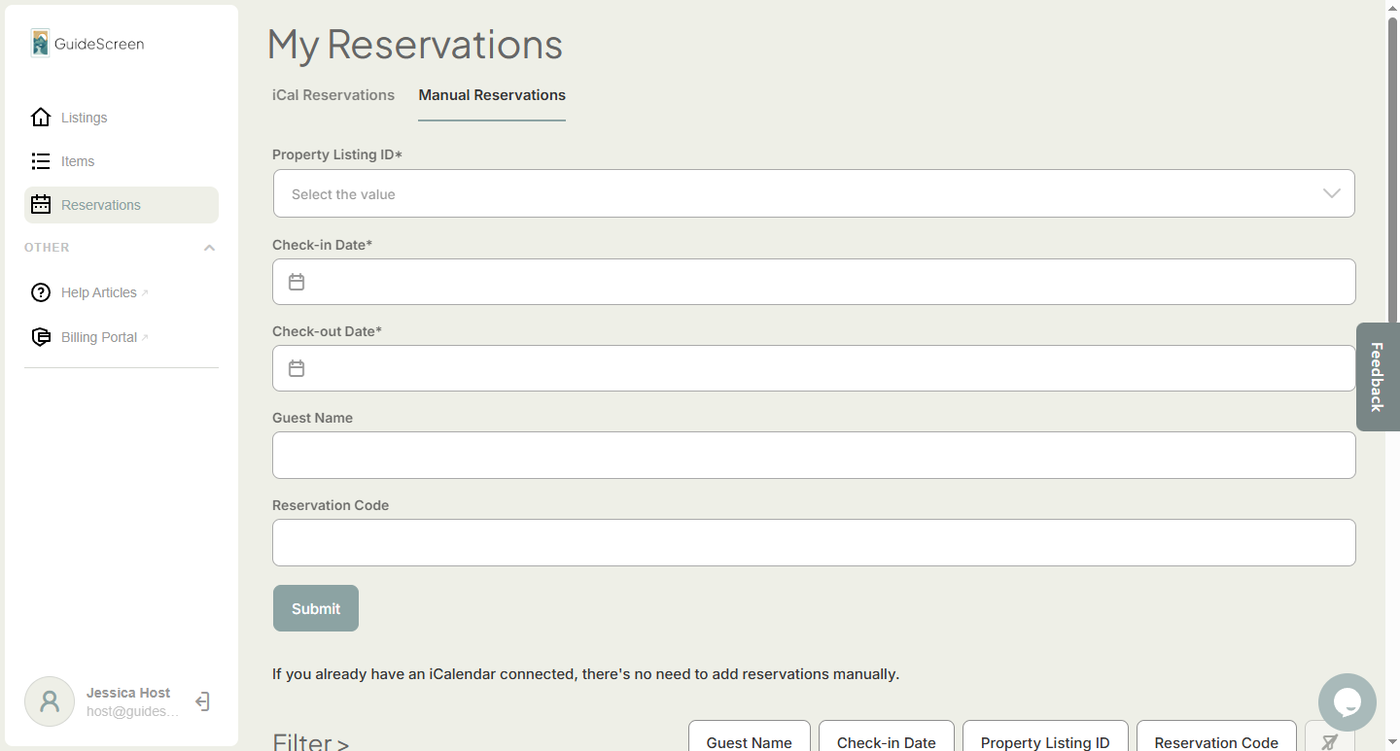
3. Select the correct property that you would like to add the reservation to under the Property Listing ID.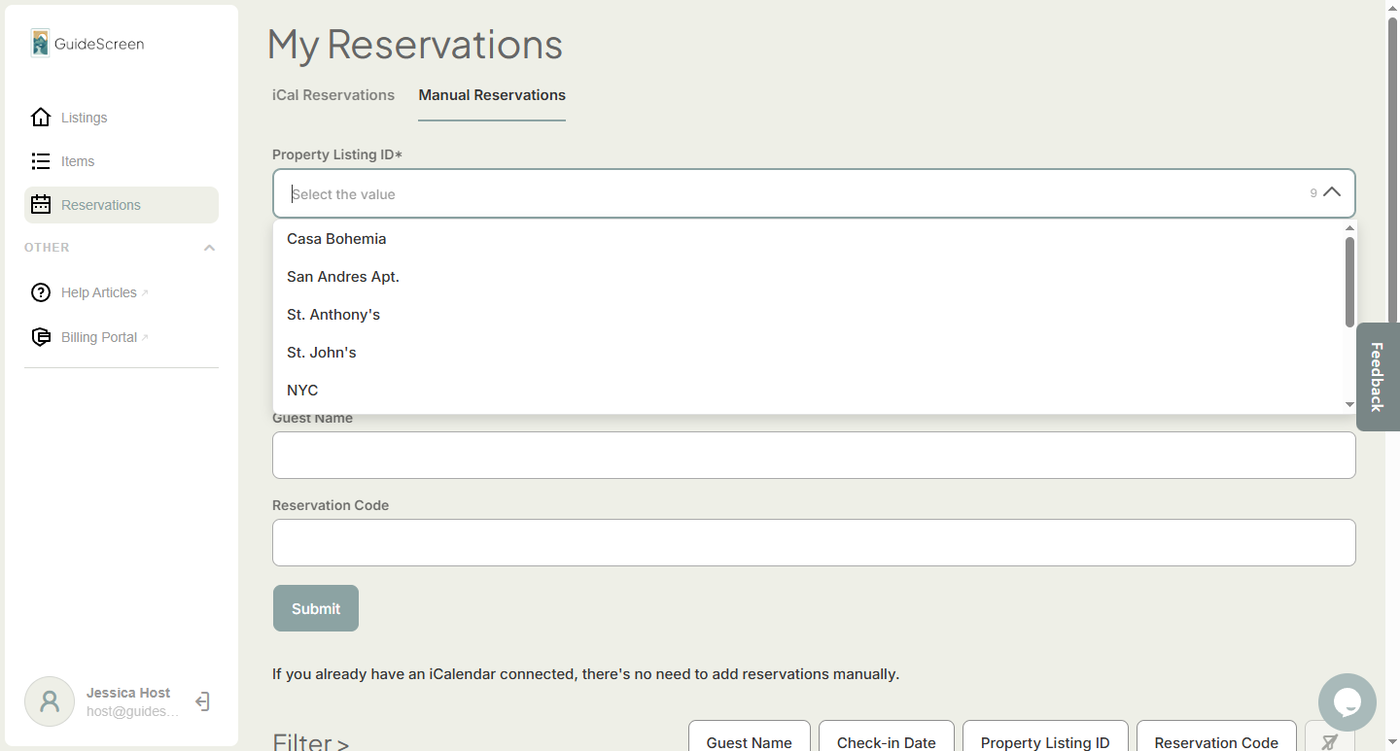
4. Next, select the Check-in Date from the date picker.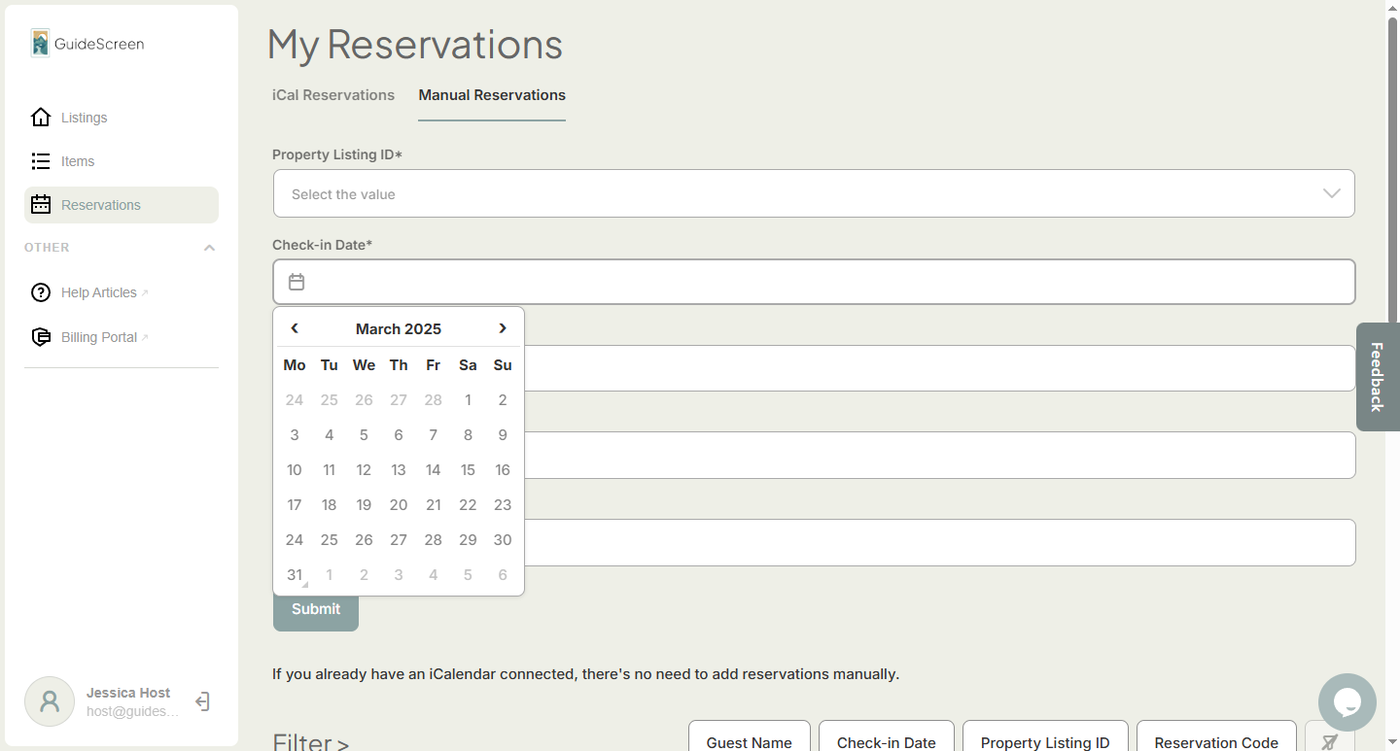
5. Next, select the Check-out Date.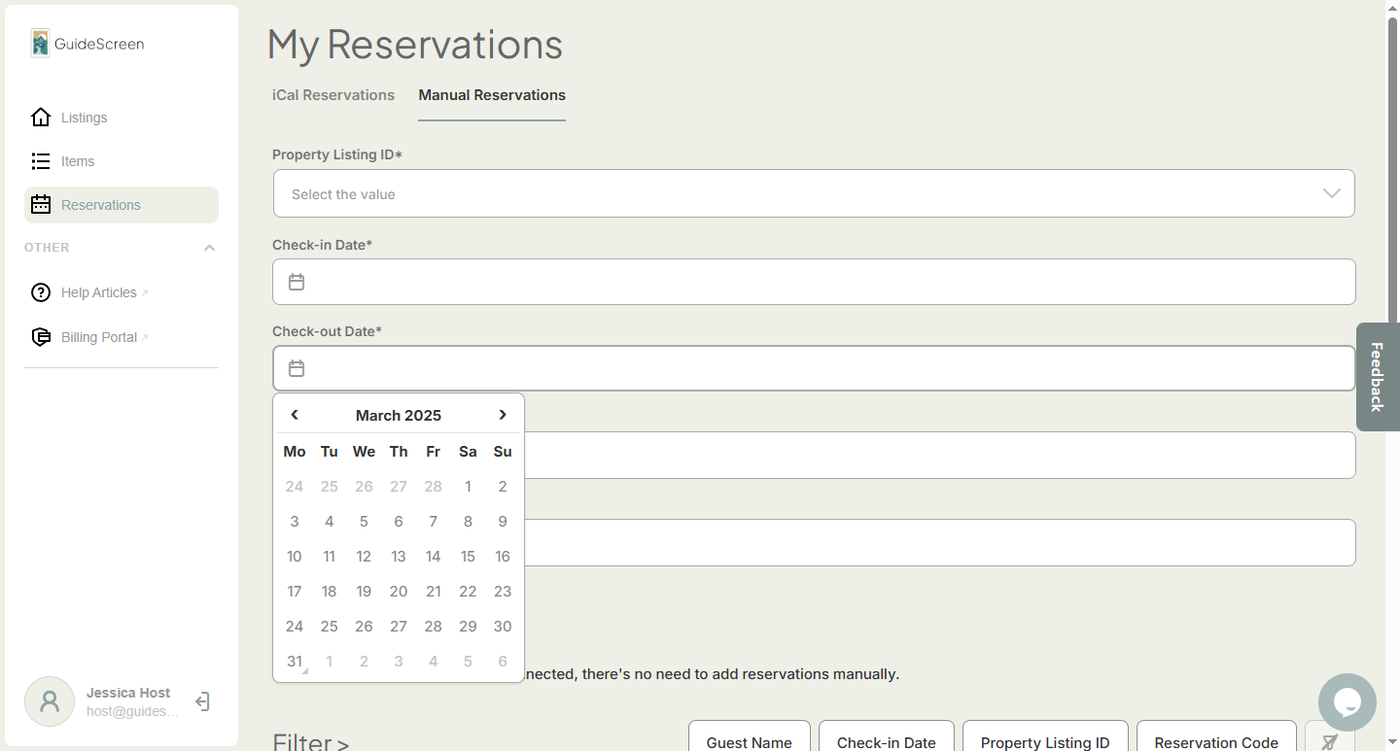
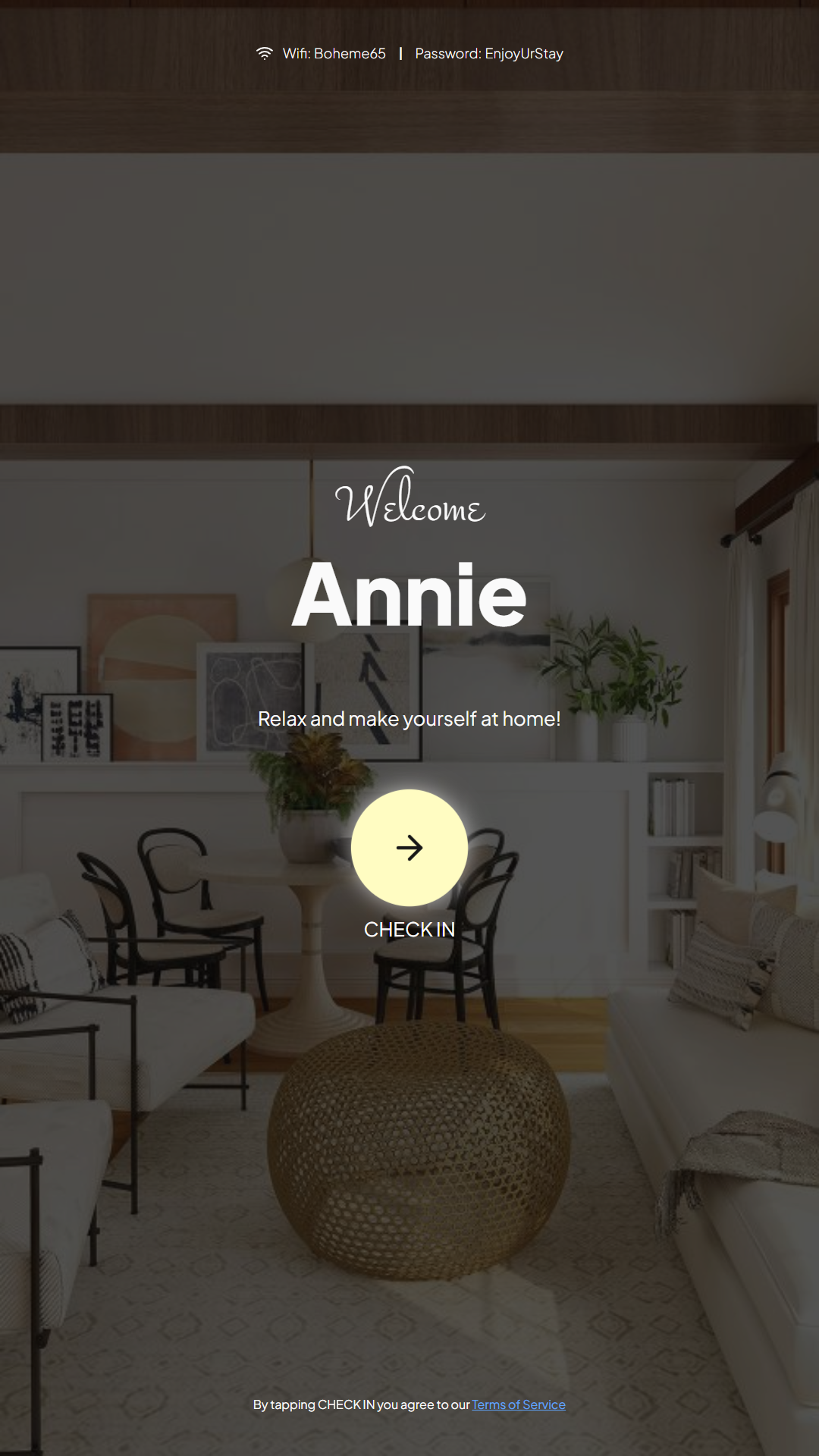
6. Next, add the guest's name in the Guest Name field. Take note that the Guest Name you put in the field will appear exactly as you entered in the Welcome Greeting on your GuideScreen device.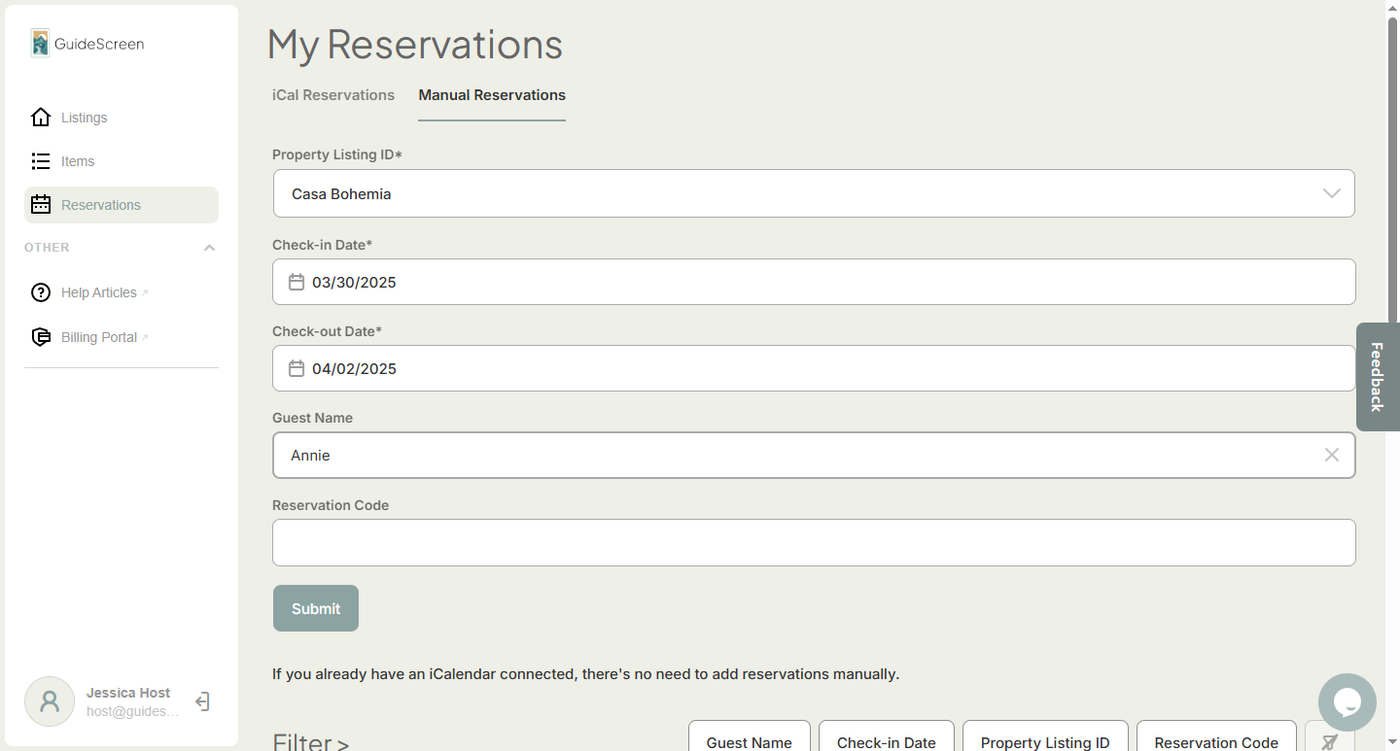
7. Adding a reservation code is optional.
NOTE: Use Manual Reservations with Care! Check that the reservation you create doesn't conflict with an existing iCal reservation.